A Raspberry Pi in Velxio is a board on the canvas that runs a Python script against the circuit you wire around it. There is nothing to compile. You write the script, press Run, and one of two engines executes it:
- Basic mode runs the script on a Python interpreter inside your browser tab. It starts in a few seconds and it is the mode you will use most of the time.
- Linux mode boots a real Linux guest on Velxio’s servers and connects it to the same circuit. You get a shell, the file system and the kernel’s own device files for I2C, SPI, UART and GPIO. It takes about a minute to boot.
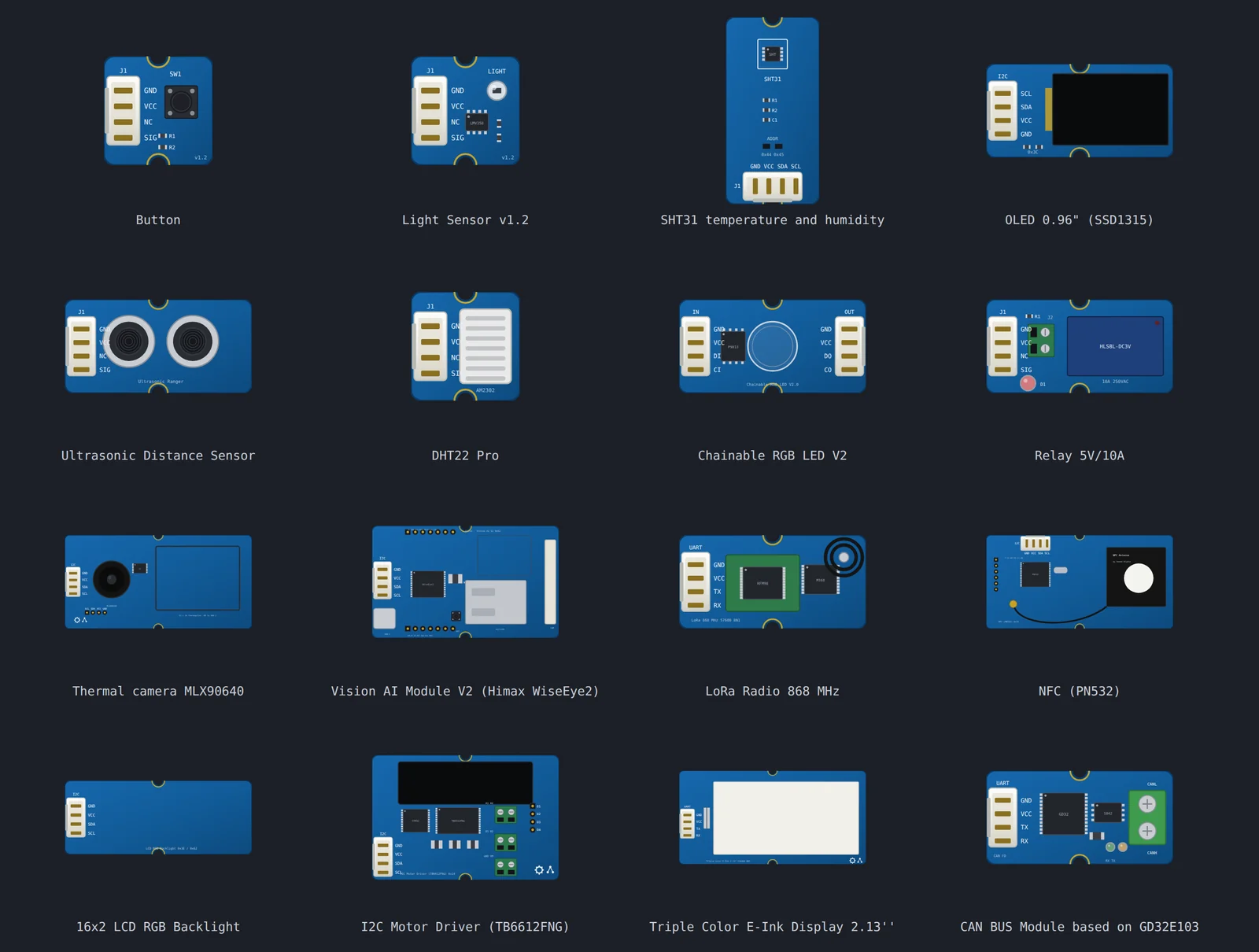
This article builds two projects, one per mode, and shows every click along the way. The first is an alarm station made of Grove modules on a Raspberry Pi 5: a motion sensor, a vibration switch and a DHT11 on the input side, a buzzer, two LEDs and a relay with a fan on the output side. The second is a sensor rig on a Raspberry Pi 4 with three I2C devices. Both scripts use the libraries that ship with Raspberry Pi OS, so they run unchanged on a real board.
Before you start, two things about access. Anyone can place a Raspberry Pi on the canvas and wire a circuit around it. Running it needs a signed-in account: every free account gets three trial sessions of 15 minutes on the Raspberry Pi family, in either mode, and any paid plan removes the limit. The details are in the What it costs section near the end.
Two ways to run the same script
| Basic mode | Linux mode | |
|---|---|---|
| Where the script runs | A Python interpreter in your browser tab | An Alpine Linux guest under QEMU on Velxio’s servers |
| Start time | A few seconds | About a minute |
| GPIO | RPi.GPIO, gpiozero, Adafruit Blinka | The same, plus /dev/gpiochip0 and the libgpiod tools |
| I2C, SPI, UART, 1-Wire | The real smbus2, spidev, pyserial and w1thermsensor over emulated device files | The same libraries over the kernel’s real device nodes |
| A shell and a file system | No | Yes, in the Serial Monitor |
| Third-party packages | From a requirements.txt | From a requirements.txt, resolved offline before the guest boots |
| Best for | Almost everything | Shell tools, subprocesses, files, and anything a tutorial does from a terminal |
The engine is chosen for you. A script that asks for something only Linux can do, such as subprocess, is sent to Linux mode and a chip in the toolbar tells you why. You can also force Linux mode yourself, which is what the second project does.
Project 1: a Grove alarm station on a Raspberry Pi 5
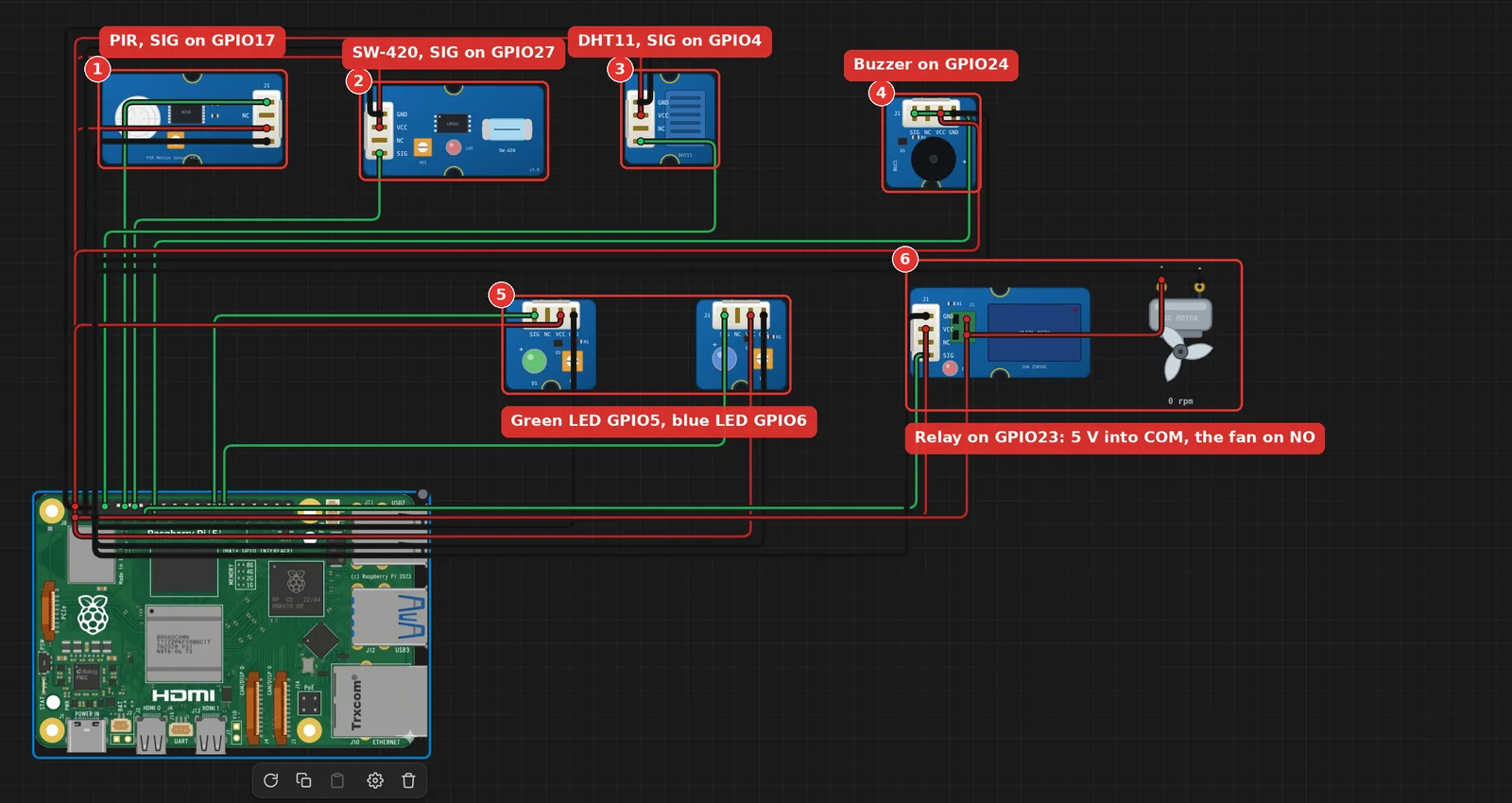
Grove modules are the fastest way to put sensors on a Pi: every module has the same four-pin socket, and in Velxio each one connects to the header with three wires, SIG, VCC and GND. This station watches a room with a PIR motion sensor and a vibration switch, reads the air with a DHT11, and answers through a buzzer, a green LED for “all quiet”, a blue LED for “alarm”, and a relay that runs a fan when the room gets warm.
Step 1: start a project on the Raspberry Pi 5
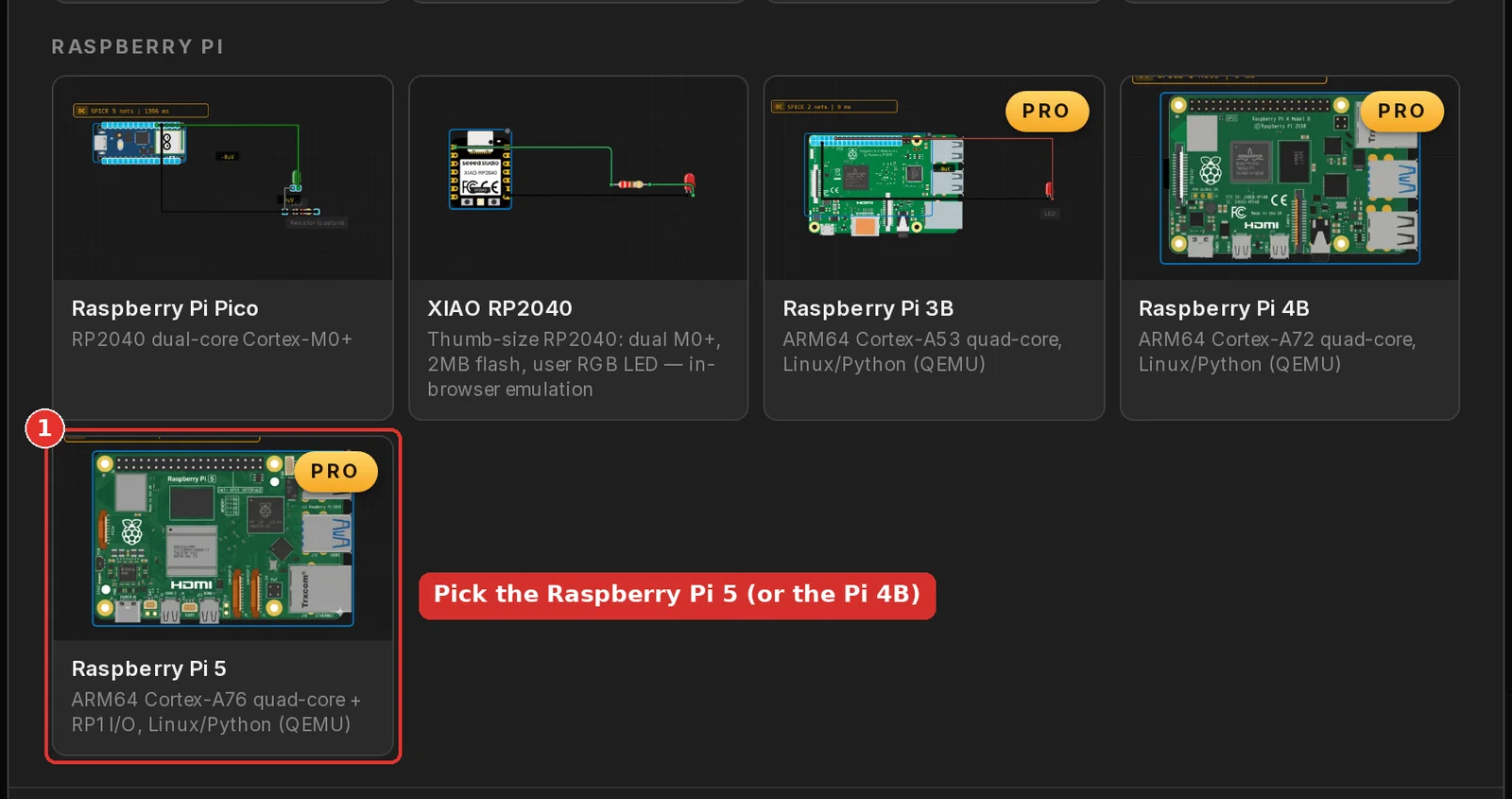
Open velxio.dev/editor. The Start a new project dialog opens on its own. Scroll to the Raspberry Pi section and click the Raspberry Pi 5 card. The Raspberry Pi 4B card works the same way: the two boards share the 40-pin header and the same libraries, so everything below applies to both.
Step 2: add the parts
Click the blue Add button at the right end of the toolbar. It opens the parts catalog.

Type a name in the search field and click the card to drop the part on the canvas. The Grove modules are all listed under their Seeed names, so “Grove PIR” or “Grove relay” finds them. Add these eight parts, one at a time:
- Grove - PIR Motion Sensor
- Grove - Vibration Sensor (SW-420)
- Grove - Temperature & Humidity Sensor (DHT11)
- Grove - Piezo Buzzer
- Grove - Green LED
- Grove - Blue LED
- Grove - Relay
- DC Motor / Fan
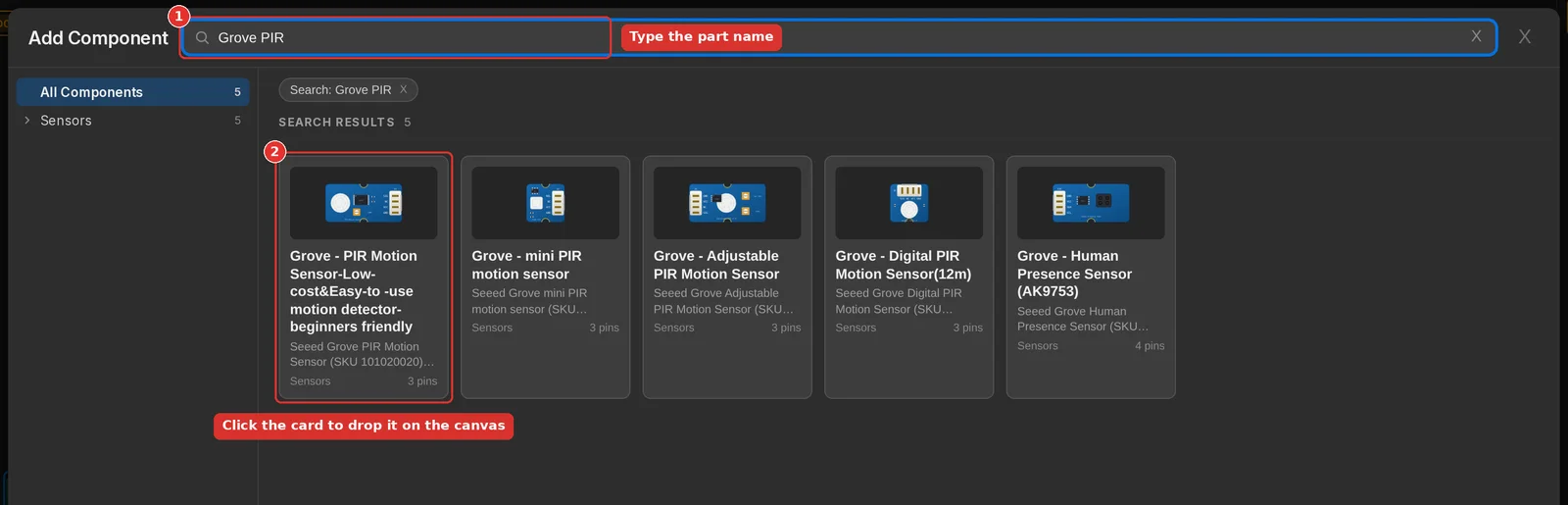
Parts can be dragged anywhere on the canvas. Leaving the Pi at the bottom and the modules above its header keeps the wires short.
Step 3: wire it
To draw a wire, click a pin, then click the pin at the other end. The pin names appear when you hover a part. Every Grove module takes the same three wires: SIG to a GPIO, VCC to 3V3, GND to GND. The relay is the exception on the supply side, its coil wants 5 V.
| Module | SIG | VCC | GND |
|---|---|---|---|
| PIR motion sensor | GPIO17 | 3V3 | GND |
| Vibration sensor (SW-420) | GPIO27 | 3V3 | GND |
| DHT11 | GPIO4 | 3V3 | GND |
| Buzzer | GPIO24 | 3V3 | GND |
| Green LED | GPIO5 | 3V3 | GND |
| Blue LED | GPIO6 | 3V3 | GND |
| Relay | GPIO23 | 5V | GND |
The fan has no signal wire of its own. It sits on the relay’s switched contacts, the way a load does on a bench: the supply goes into COM and comes out of NO only while the coil is energised.
| From | To |
|---|---|
| Raspberry Pi 5V | Relay COM |
| Relay NO | Fan + |
| Fan - | Raspberry Pi GND |
Step 4: the script
The file explorer on the left already holds a file called script.py with a short blink script. Keep that name. Basic mode runs the first .py file it finds, but Linux mode runs script.py specifically, so a project whose main file keeps that name works in both.
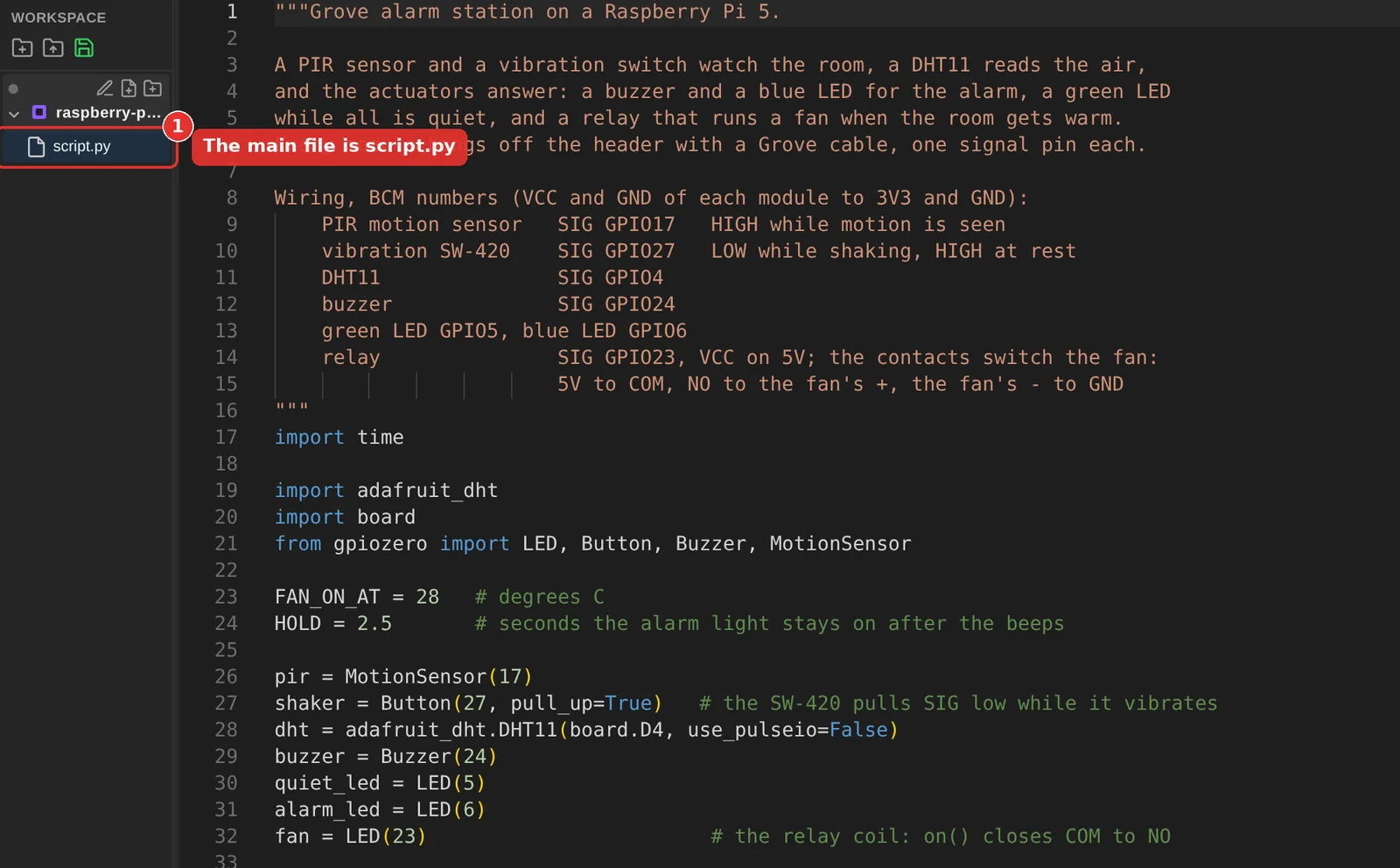
Replace its contents with this script:
"""Grove alarm station on a Raspberry Pi 5.

A PIR sensor and a vibration switch watch the room, a DHT11 reads the air,
and the actuators answer: a buzzer and a blue LED for the alarm, a green LED
while all is quiet, and a relay that runs a fan when the room gets warm.
Every module hangs off the header with a Grove cable, one signal pin each.

Wiring, BCM numbers (VCC and GND of each module to 3V3 and GND):
    PIR motion sensor   SIG GPIO17   HIGH while motion is seen
    vibration SW-420    SIG GPIO27   LOW while shaking, HIGH at rest
    DHT11               SIG GPIO4
    buzzer              SIG GPIO24
    green LED GPIO5, blue LED GPIO6
    relay               SIG GPIO23, VCC on 5V; the contacts switch the fan:
                        5V to COM, NO to the fan's +, the fan's - to GND
"""
import time

import adafruit_dht
import board
from gpiozero import LED, Button, Buzzer, MotionSensor

FAN_ON_AT = 28   # degrees C
HOLD = 2.5       # seconds the alarm light stays on after the beeps

pir = MotionSensor(17)
shaker = Button(27, pull_up=True)   # the SW-420 pulls SIG low while it vibrates
dht = adafruit_dht.DHT11(board.D4, use_pulseio=False)
buzzer = Buzzer(24)
quiet_led = LED(5)
alarm_led = LED(6)
fan = LED(23)                        # the relay coil: on() closes COM to NO


def alarm(reason, beeps, beep_time):
    print(f"ALARM: {reason}")
    quiet_led.off()
    alarm_led.on()
    buzzer.beep(on_time=beep_time, off_time=0.1, n=beeps, background=False)
    time.sleep(HOLD)
    alarm_led.off()
    quiet_led.on()


quiet_led.on()
motion_seen = False
shaking = False
next_reading = 0
print("Station armed")

while True:
    if pir.motion_detected and not motion_seen:
        alarm("motion in the room", beeps=3, beep_time=0.15)
    motion_seen = pir.motion_detected

    if shaker.is_pressed and not shaking:
        alarm("vibration on the door", beeps=1, beep_time=0.6)
    shaking = shaker.is_pressed

    if time.monotonic() >= next_reading:
        next_reading = time.monotonic() + 2
        try:
            temperature, humidity = dht.temperature, dht.humidity
        except RuntimeError as err:   # a DHT11 misses a reading now and then
            print(f"DHT11: {err}")
        else:
            fan.value = temperature >= FAN_ON_AT
            print(f"{temperature:.0f} C  {humidity:.0f} %RH  fan {'on' if fan.value else 'off'}")

    time.sleep(0.1)
Three things in it are worth a look, because they are the same on real hardware:
- The SW-420 is wired the way its datasheet describes: SIG is HIGH while the module sits still and goes LOW while it shakes. A gpiozero
Buttonwith a pull-up reads that as “pressed” during a shake, which is why the script does not need any inversion logic. - The relay is driven as an
LED. gpiozero has no relay class; an output device that is on or off is all a relay coil needs. adafruit_dhtraisesRuntimeErrorwhen a read fails, and a DHT11 does fail a read every so often. Thetryblock is not defensive decoration, it is how the library is meant to be used.
Step 5: run it
On the toolbar, click the green triangle to run the project. The Serial Monitor opens at the bottom and reports what the engine is doing: it loads the Python runtime, installs the GPIO library, and prints a line like [Velxio] ready in 6068 ms followed by the name of the script it is running. From then on, every print() in the script lands there.

The script prints Station armed, then a temperature and humidity line every two seconds. The DHT11 on the canvas starts at 31 C, so the relay closes at once and the fan spins up: the motor shows a direction arrow and its speed in rpm, and the relay’s own indicator lights. Now interact with the sensors:
- Click the PIR’s dome, or press Motion in its sensor panel. SIG goes HIGH for five seconds, the script prints
ALARM: motion in the room, the blue LED comes on and the buzzer beeps three times. - Click the vibration sensor, or toggle Vibration in its panel. One long beep, and
ALARM: vibration on the door. - Drag the DHT11’s temperature slider below 28 C. On the next reading the relay opens and the fan coasts to a stop.
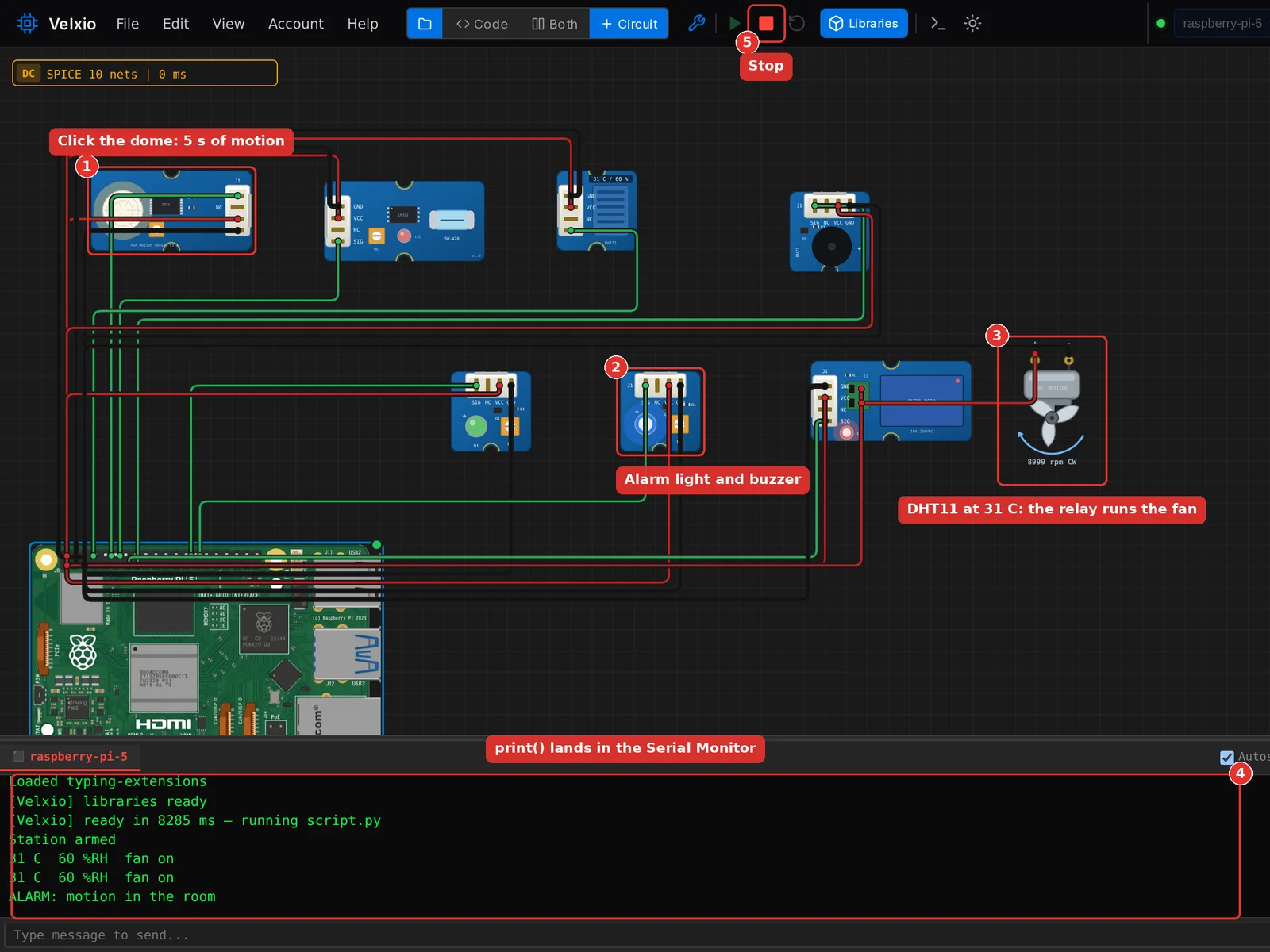
The red square next to the Run button stops the script. That is basic mode in full: the script runs in your tab, the pins reach the canvas directly, and the whole loop from Run to a reacting circuit takes seconds.
Project 2: an I2C sensor rig on a Raspberry Pi 4, then Linux mode
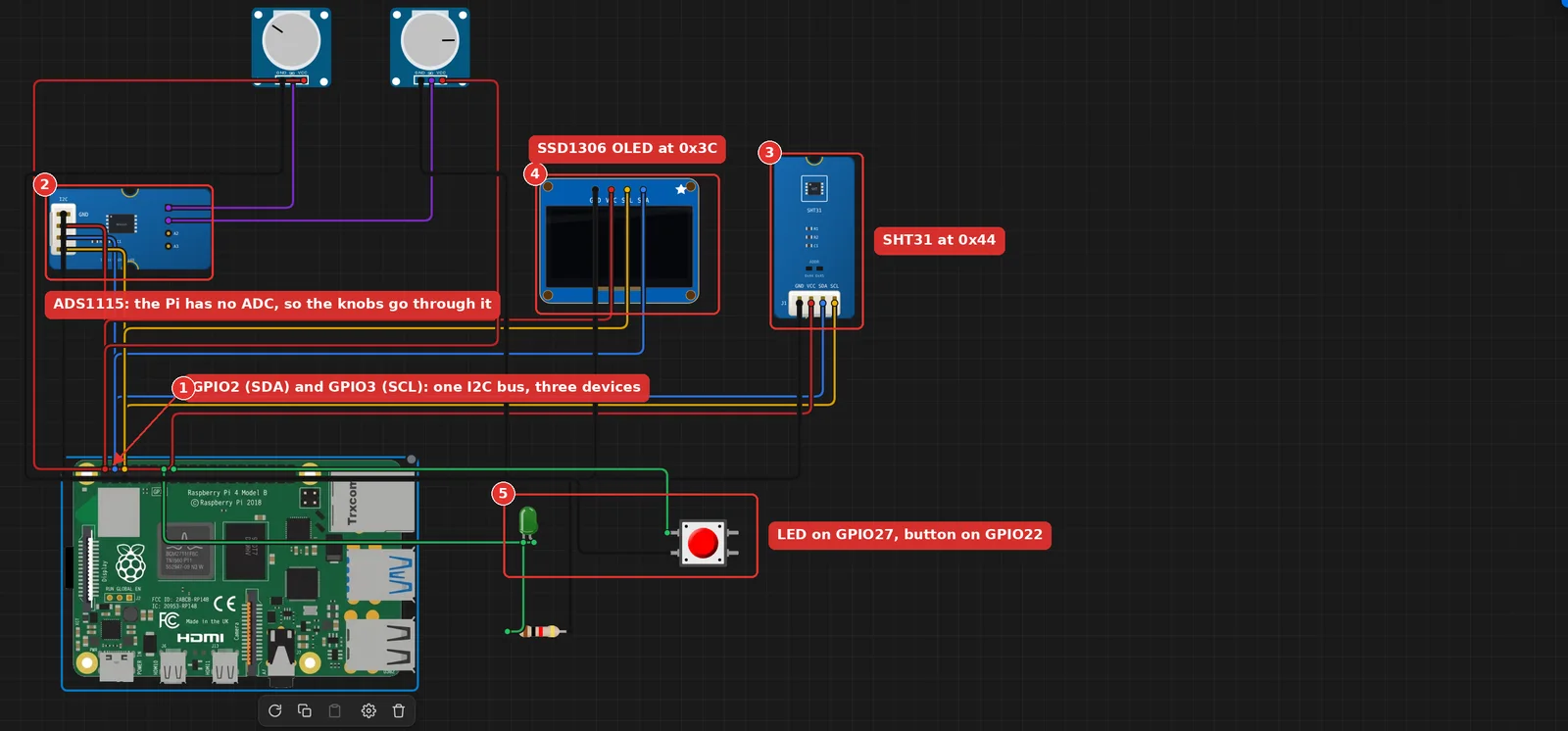
The second project puts three I2C devices on the header bus and uses the real smbus2 to talk to them: a Grove ADS1115 analog-to-digital converter with two potentiometers, a Grove SHT31 temperature and humidity sensor, and an SSD1306 OLED. A button and an LED on plain GPIO complete it. The same circuit works on a Raspberry Pi 5 without changing a wire or a line: the header is the same.
The ADS1115 is there for a reason that catches many people: a Raspberry Pi has no analog input. A potentiometer wired straight to a GPIO only ever reads high or low, on the real board and in Velxio, so the knobs go through the ADC.
The circuit
Start a new project on the Raspberry Pi 4B card and add these parts from the catalog:
- Grove - 4 Channel 16-bit ADC (ADS1115)
- Potentiometer, twice
- Grove - Temperature&Humidity Sensor (SHT31)
- SSD1306 OLED (I2C, 4-pin)
- LED, Resistor 220 Ω and Pushbutton
Then wire them. All three I2C devices share GPIO2 (SDA) and GPIO3 (SCL):
| From (Raspberry Pi 4) | To |
|---|---|
| GPIO2 (SDA) | SDA of the ADS1115, the SHT31 and the OLED |
| GPIO3 (SCL) | SCL of the ADS1115, the SHT31 and the OLED |
| 3V3 | VCC of the ADS1115, the SHT31, the OLED and both potentiometers |
| GND | GND of the ADS1115, the SHT31, the OLED and both potentiometers |
| GPIO27 | LED anode; LED cathode to 220 Ω, then GND |
| GPIO22 | Pushbutton; the other side of the button to GND |
| From | To |
|---|---|
| Potentiometer 1 SIG | ADS1115 A0 |
| Potentiometer 2 SIG | ADS1115 A1 |
The script
Save this as script.py. It first asks each of the three addresses whether anyone answers, then loops: two ADC channels, temperature and humidity, the button state on the LED, and the readings on the OLED through luma.oled.
"""Sensor rig check for a Raspberry Pi 4.

Probes the three I2C devices, then loops: two knobs through the ADS1115,
temperature and humidity from the SHT31, the readings on the OLED, and a
button that lights the LED. Everything here is what Raspberry Pi OS ships:
smbus2 for the bus, gpiozero for the LED and the button, luma.oled for
the display.

Wiring, on the 40-pin header:
    I2C   : ADS1115, SHT31 and OLED on GPIO2 (SDA) and GPIO3 (SCL), 3V3, GND
    ADC   : one potentiometer on ADS1115 A0, another on A1
    GPIO  : LED through 220 ohm on GPIO27, button between GPIO22 and GND
"""
import time

import smbus2
from gpiozero import LED, Button
from luma.core.interface.serial import i2c
from luma.core.render import canvas
from luma.oled.device import ssd1306

ADS1115, SHT31, OLED = 0x48, 0x44, 0x3C
NAMES = {ADS1115: "ADS1115", SHT31: "SHT31", OLED: "SSD1306 OLED"}

# ADS1115 config register, field by field (datasheet, table 8)
ADS_START = 0x8000       # OS: begin one conversion
ADS_MUX_SINGLE = 0x4000  # AINx against GND; the channel goes in bits 12 and 13
ADS_PGA_4V = 0x0200      # +/-4.096 V full scale
ADS_ONE_SHOT = 0x0100    # power down between conversions
ADS_128_SPS = 0x0080     # 128 samples per second
ADS_NO_COMP = 0x0003     # comparator off
ADS_LSB_VOLTS = 4.096 / 32768

bus = smbus2.SMBus(1)
led = LED(27)
button = Button(22, pull_up=True)


def present(address):
    """True when a device acknowledges its address on bus 1."""
    try:
        bus.write_quick(address)
        return True
    except OSError:
        return False


def read_ads1115(channel):
    """One single-shot conversion on AIN0..AIN3, returned in volts."""
    config = (ADS_START | ADS_MUX_SINGLE | (channel << 12)
              | ADS_PGA_4V | ADS_ONE_SHOT | ADS_128_SPS | ADS_NO_COMP)
    bus.write_i2c_block_data(ADS1115, 0x01, [config >> 8, config & 0xFF])
    time.sleep(0.01)
    hi, lo = bus.read_i2c_block_data(ADS1115, 0x00, 2)
    raw = (hi << 8) | lo
    if raw & 0x8000:
        raw -= 0x10000
    return raw * ADS_LSB_VOLTS


def read_sht31():
    """Single shot, high repeatability, no clock stretching (command 0x2400)."""
    bus.i2c_rdwr(smbus2.i2c_msg.write(SHT31, [0x24, 0x00]))
    time.sleep(0.02)
    reply = smbus2.i2c_msg.read(SHT31, 6)
    bus.i2c_rdwr(reply)
    d = list(reply)
    temperature = -45 + 175 * ((d[0] << 8) | d[1]) / 65535
    humidity = 100 * ((d[3] << 8) | d[4]) / 65535
    return temperature, humidity


print("I2C bus 1:")
for address, name in NAMES.items():
    print(f"  0x{address:02X}  {name}: {'found' if present(address) else 'missing'}")
print()

oled = ssd1306(i2c(port=1, address=OLED))

while True:
    knob_a = read_ads1115(0)
    knob_b = read_ads1115(1)
    temperature, humidity = read_sht31()
    pressed = button.is_pressed
    led.value = pressed
    print(f"A0 {knob_a:5.3f} V   A1 {knob_b:5.3f} V   {temperature:4.1f} C  {humidity:3.0f} %RH"
          + ("   button pressed" if pressed else ""))
    with canvas(oled) as draw:
        draw.text((0, 0), "Pi 4 sensor rig", fill="white")
        draw.text((0, 16), f"A0 {knob_a:.2f}V  A1 {knob_b:.2f}V", fill="white")
        draw.text((0, 32), f"{temperature:.1f} C   {humidity:.0f} %RH", fill="white")
        draw.text((0, 48), "button " + ("down" if pressed else "up"), fill="white")
    time.sleep(2)
Three details are worth a look. The ADS1115 is configured field by field, the way its datasheet lays out the config register, so each constant can be checked against table 8 of that document. The SHT31 is read with i2c_rdwr because its measurement command is two bytes with no register address, which plain SMBus calls cannot express. And luma.oled is the same display library that Raspberry Pi tutorials install with pip; here it is preinstalled, like smbus2 and gpiozero.
Run it in basic mode first
Press Run. The probe finds the three chips, the loop prints the readings, and the OLED shows them. Turn a potentiometer and the A0 or A1 voltage follows; click the SHT31 and you can set the temperature and humidity it reports; hold the pushbutton and the LED lights.
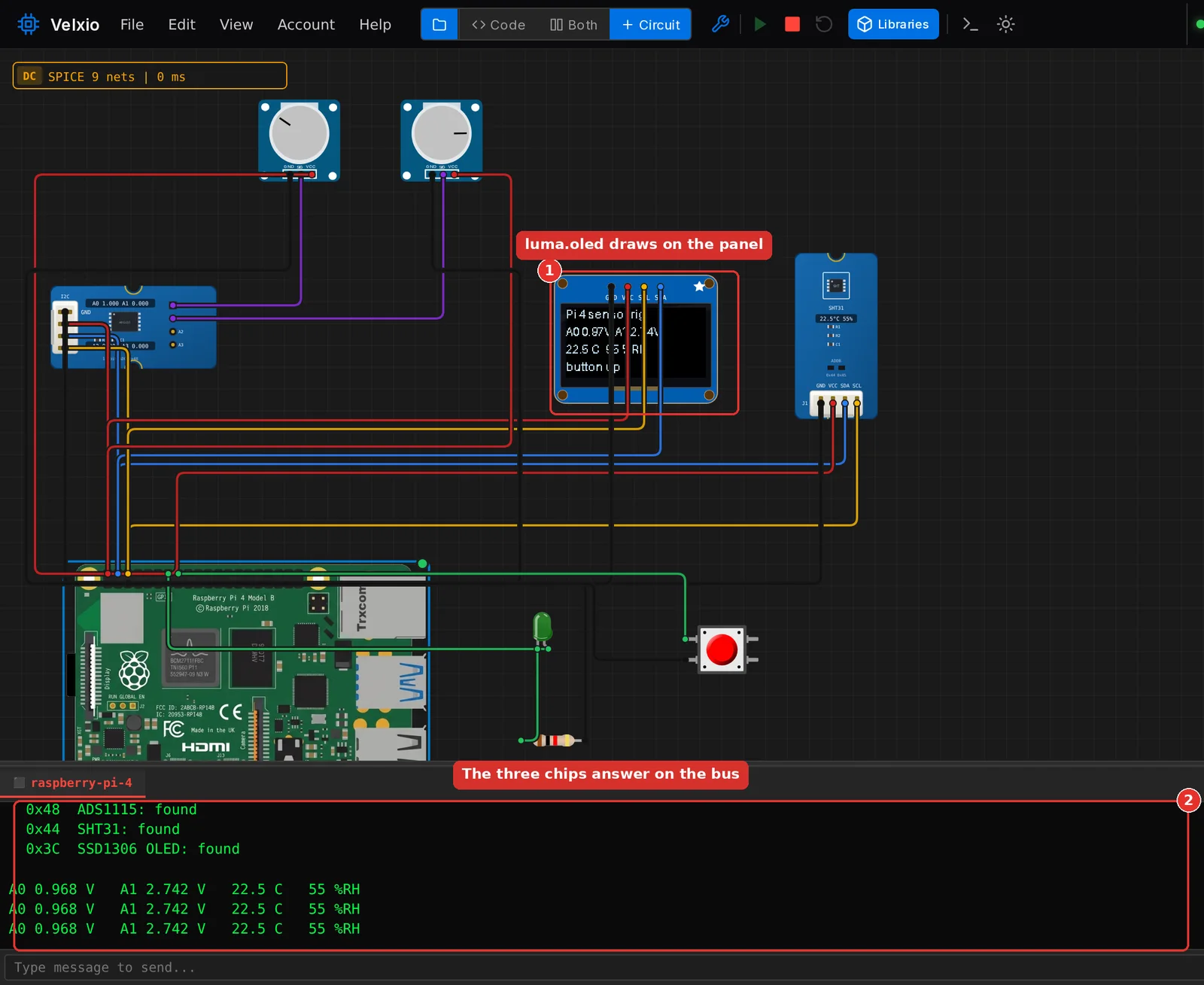
Everything so far ran in the browser. The next steps run the very same project on a Linux machine.
Switch to Linux mode
- If the Serial Monitor is not open, click Serial on the toolbar.
- In the Serial Monitor’s title bar, on the right, click Linux terminal.

- A dialog called Advanced Linux mode explains what is about to happen: the project restarts, booting takes about a minute, and everything runs slower than in the browser. Click Start Linux mode.
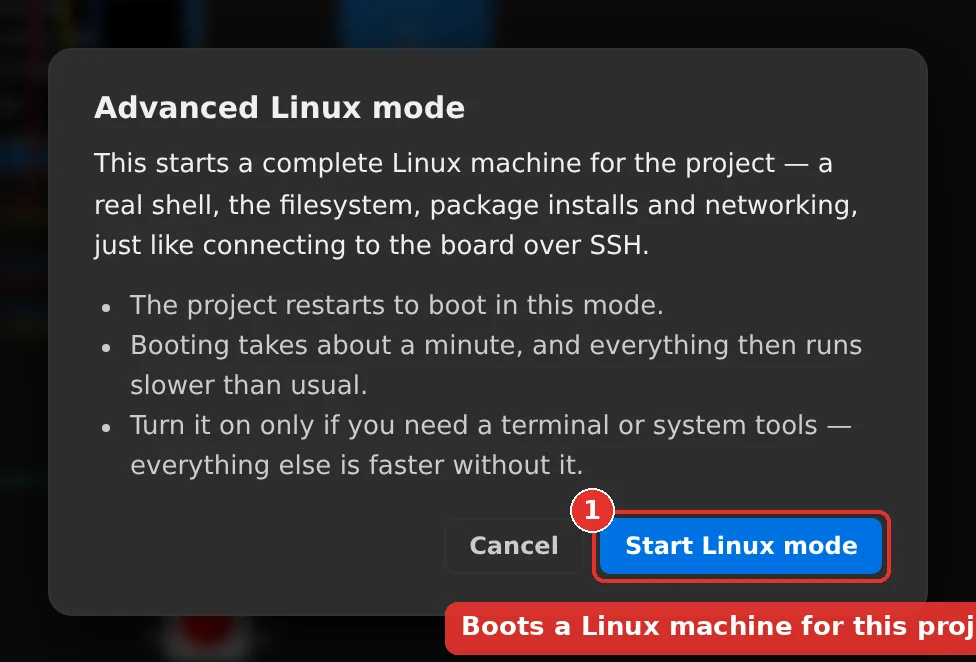
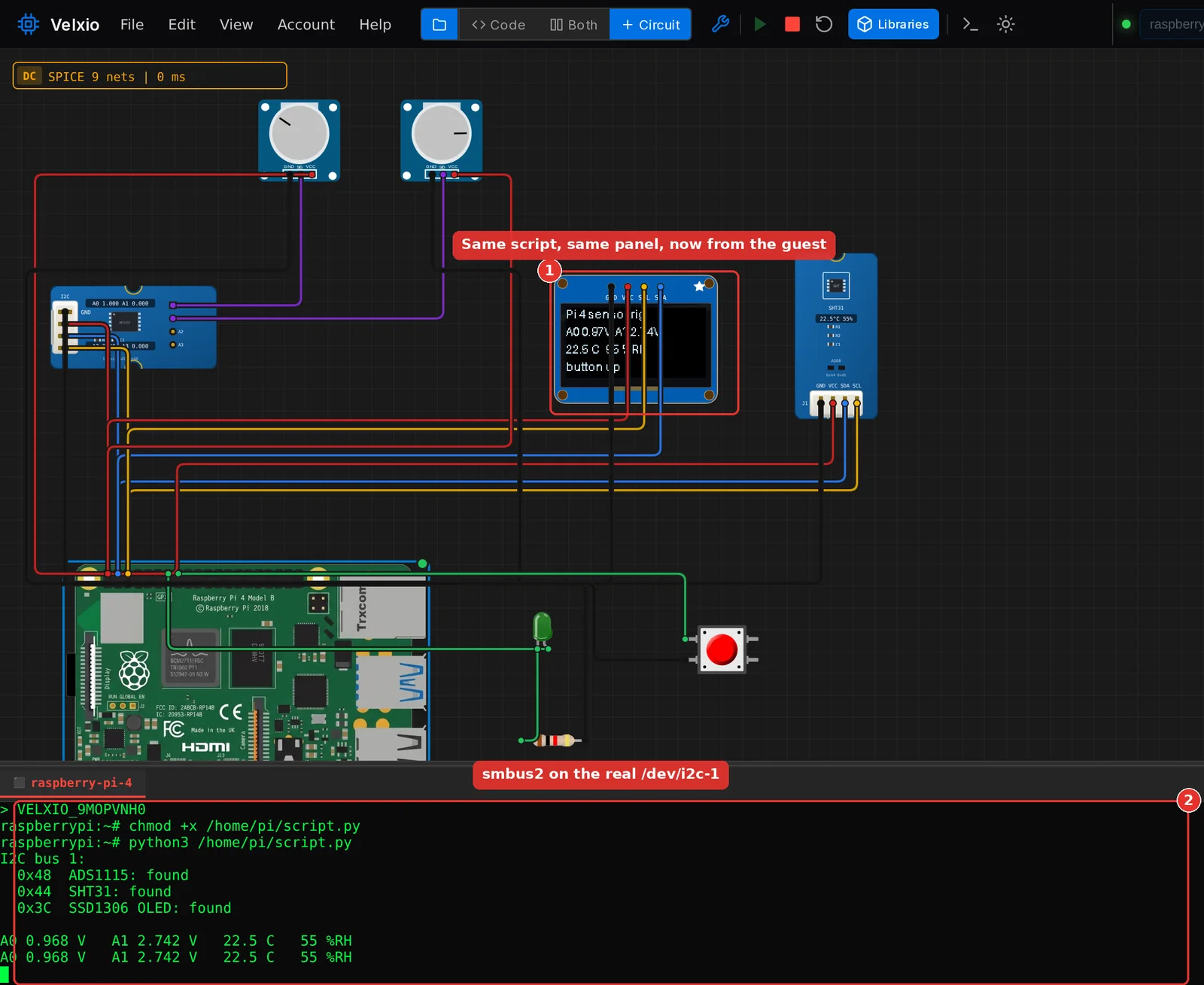
The guest boots in the Serial Monitor, which has become a real terminal. While it boots, the chip next to the board selector in the toolbar reads Linux, and its tooltip says that Linux mode is on for this project.

When the prompt appears, Velxio copies script.py into the guest’s home directory and starts it. On a quiet server the prompt shows up after about 20 seconds and the first readings about a minute after you clicked the button. The output is the same as before, and the OLED is driven by the same luma.oled call, now from inside the guest through the kernel’s /dev/i2c-1.
Use the shell
This is what Linux mode is for. Click inside the terminal, press Ctrl+C to stop the script, and you are at a root prompt on an Alpine Linux system. A few lines to try:
cat /etc/os-release | head -2
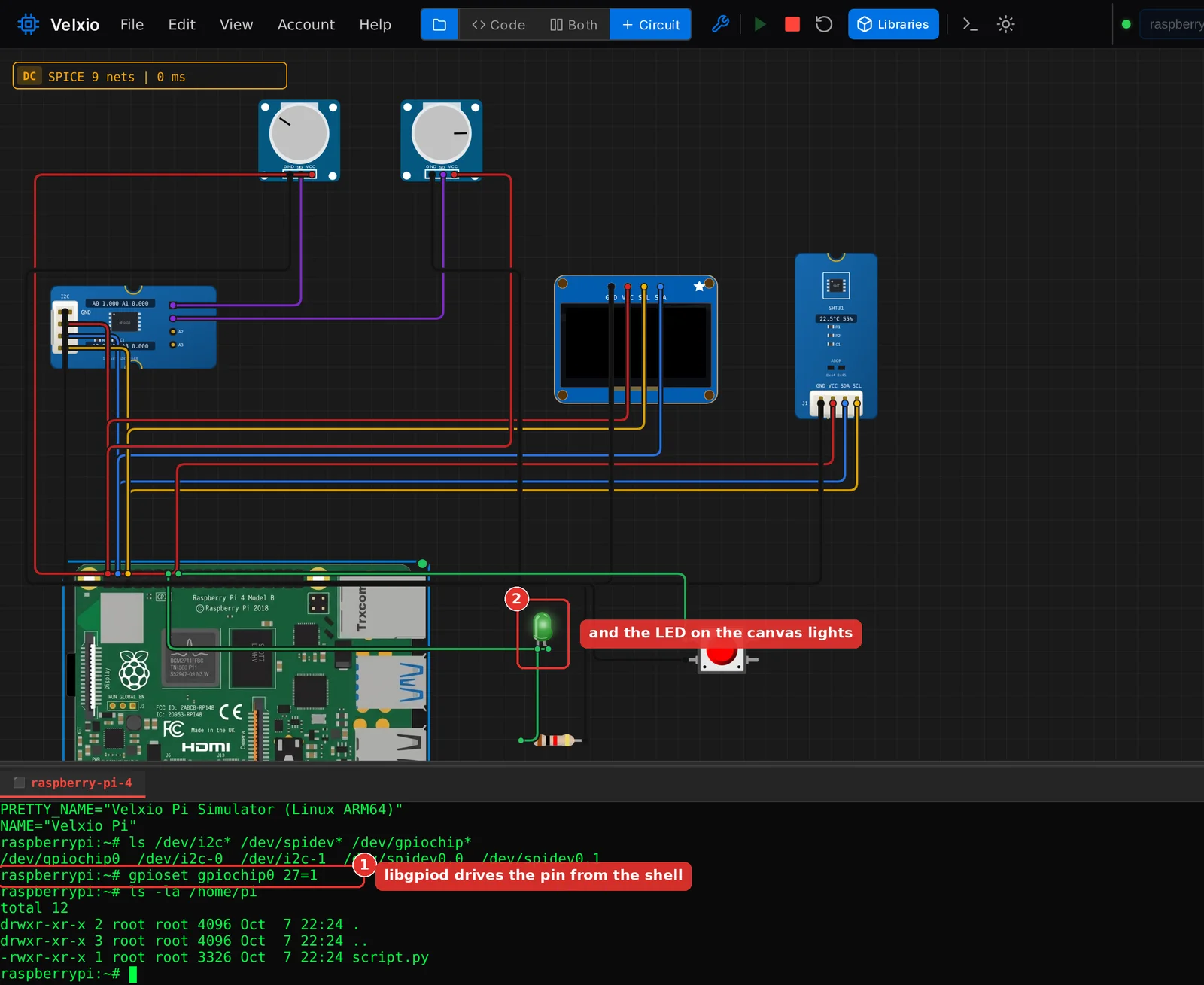
ls /dev/i2c* /dev/spidev* /dev/gpiochip*
gpioset gpiochip0 27=1
ls -la /home/pi
The second line lists the header buses as device nodes: /dev/i2c-0, /dev/i2c-1, /dev/spidev0.0, /dev/spidev0.1 and /dev/gpiochip0. They answer the same system calls as on a Raspberry Pi, so a library that opens them itself, a C program, or your own ioctl code talks to the parts on the canvas.
The third line is the modern way to drive a pin from the shell, with the libgpiod tools that Raspberry Pi OS Bookworm ships. The moment you press Enter, the LED on GPIO27 lights on the canvas. The guest has libgpiod version 1, so the chip is a positional argument, as written above, and the version 2 spelling with --chip is not understood.
To run the script again by hand, type python3 script.py. To go back to the browser engine, click Exit Linux terminal in the same title bar. The choice is not saved with the project: reopen it tomorrow and Run goes back to basic mode.

What works in each mode
The table below is the short version of the Raspberry Pi page in the documentation, which was measured part by part against the live product.
| Module | Basic mode | Linux mode |
|---|---|---|
RPi.GPIO, gpiozero | Preinstalled | Preinstalled |
smbus2, spidev | Preinstalled, the real libraries | Preinstalled, the real libraries over the kernel nodes |
serial (pyserial) | The Pi UART paths only | The real pyserial on a real tty, /dev/serial0 |
adafruit_dht, Adafruit_DHT | Preinstalled | Preinstalled |
w1thermsensor, the 1-Wire sysfs tree | Preinstalled | Through requirements.txt; the sysfs tree is there |
luma.oled, RPLCD, ST7789, Adafruit Blinka | Preinstalled | Preinstalled |
gpiod and the gpio* tools | No character device in the browser | Preinstalled |
cv2 (OpenCV) | Yes | No build for the guest |
picamera2 | Yes, over your webcam | No; use rpicam-jpeg and its siblings |
requests, urllib | Through an egress proxy with an allowlist | No network inside the guest |
| Anything else on PyPI | Through requirements.txt | Through requirements.txt, when PyPI has a musl aarch64 wheel |
What neither mode does, so you do not spend a trial session finding out:
- Analog input on a GPIO. The Pi has no ADC. Put an ADS1115 or an MCP3008 between the sensor and the board, as in the second project.
pigpio. It maps the peripheral registers through/dev/gpiomem, and nothing here provides that mapping. Use RPi.GPIO, gpiozero or, in Linux mode, libgpiod.apt,raspi-config, a desktop. The guest is Alpine Linux, not Raspberry Pi OS. Python 3 and pip are there; the package manager and the Pi firmware tools are not.- Network from inside the guest. Nothing in the guest can reach the internet or PyPI. Packages listed in
requirements.txtare resolved before the boot and are importable at the prompt. - Large machine-learning stacks. PyTorch and TensorFlow are refused with an explanation.
Two habits save time. Name the main file script.py, so that both modes run the same file. And put third-party packages in a requirements.txt next to it: when a script imports a package that is missing, the run console offers the line and a button writes it for you.
What it costs
Anyone can wire a Raspberry Pi circuit without an account. Running it is gated:
- A free account gets three trial sessions of 15 minutes on the Raspberry Pi family. A session opens when you press Run, in either mode, and every run until it ends is free. Signed out, the toolbar shows a chip that invites you to sign in before the first run.
- Any paid plan removes the limit. The cheapest, No AI, is 4 USD a month or 36 USD a year and includes the Raspberry Pi and STM32 boards with unlimited run time; Maker and Pro include them too. Current prices are on the pricing page.

Trial sessions are the same on both engines, so a script that only needs basic mode should stay there: it starts in seconds instead of a minute, and the Linux guest is for what only Linux can do.
Where to go next
- Gallery examples for the Pi: a button and an LED on a Pi 4, a PIR motion alarm on a Pi 5, an MPU6050 over smbus2, and every bus at once on a Pi 4.
- The Grove catalog: the Grove modules article walks through what a module looks like on the canvas and how it is emulated.
- The documentation: the Raspberry Pi family page with the full compatibility tables, and the pinouts of the Raspberry Pi 4 and the Raspberry Pi 5.
Summary
Two projects, two engines. The Grove alarm station ran in basic mode on a Raspberry Pi 5, from an empty canvas to a reacting circuit in a few minutes, with the gpiozero and Adafruit DHT code a Raspberry Pi tutorial would use. The sensor rig ran first in basic mode on a Raspberry Pi 4, then in Linux mode, where the same script talked to the ADS1115, the SHT31 and the OLED through the kernel’s /dev/i2c-1, and a gpioset command typed at the prompt lit an LED on the canvas. Basic mode covers most of what a Raspberry Pi tutorial asks for; Linux mode is there for the terminal, the files and the system tools, at the price of a minute’s boot.