Arduino, running the sketch you wrote
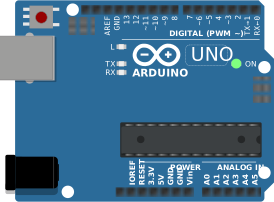
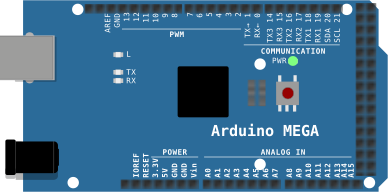
arduino-cli compiles it, an AVR8 core executes it instruction by instruction, and the LCD shows what the ATmega328P actually put on the bus. Uno, Nano, Mega and ATtiny85, no board on your desk.

Hardware is all about iteration. Velxio lets you wire a circuit, program the board and run it in seconds, real firmware on a real solver, right in the browser.





DFRobot · M5Stack links on this page are affiliate links: a purchase through them earns Velxio a small commission at no extra cost to you.
Nothing on this page is a scripted animation: the firmware is compiled and executed, and the circuit around it is solved.
arduino-cli compiles it, an AVR8 core executes it instruction by instruction, and the LCD shows what the ATmega328P actually put on the bus. Uno, Nano, Mega and ATtiny85, no board on your desk.
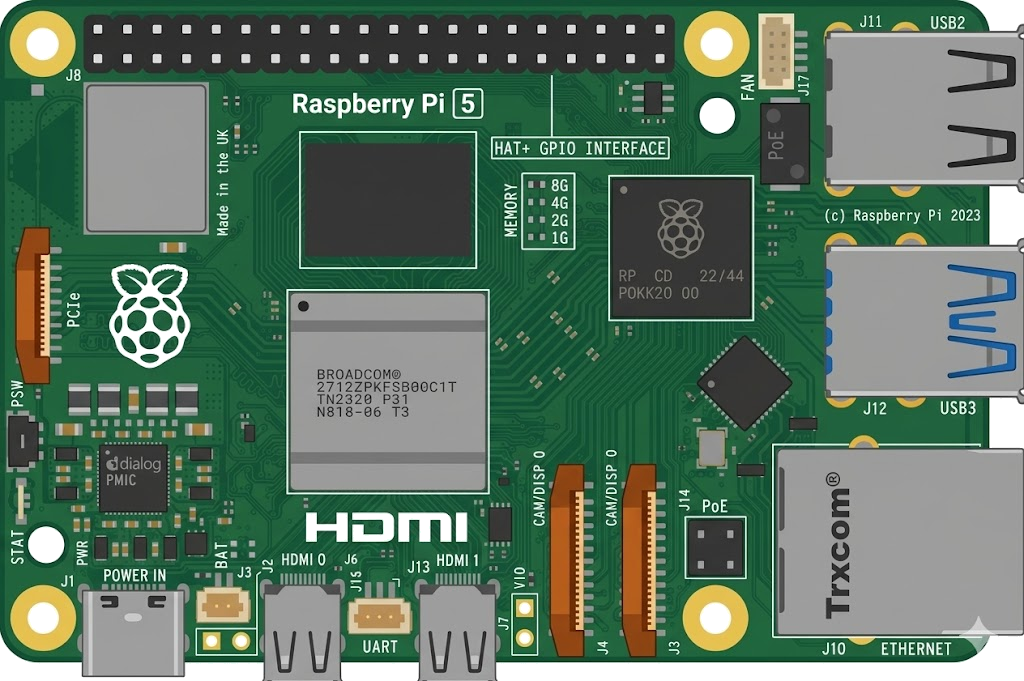
arduino-cli or ESP-IDF compiles the sketch, then AVR8, RP2040, RISC-V, Xtensa or ARM executes it instruction by instruction. What the OLED draws and what the serial monitor prints is what the chip actually did.

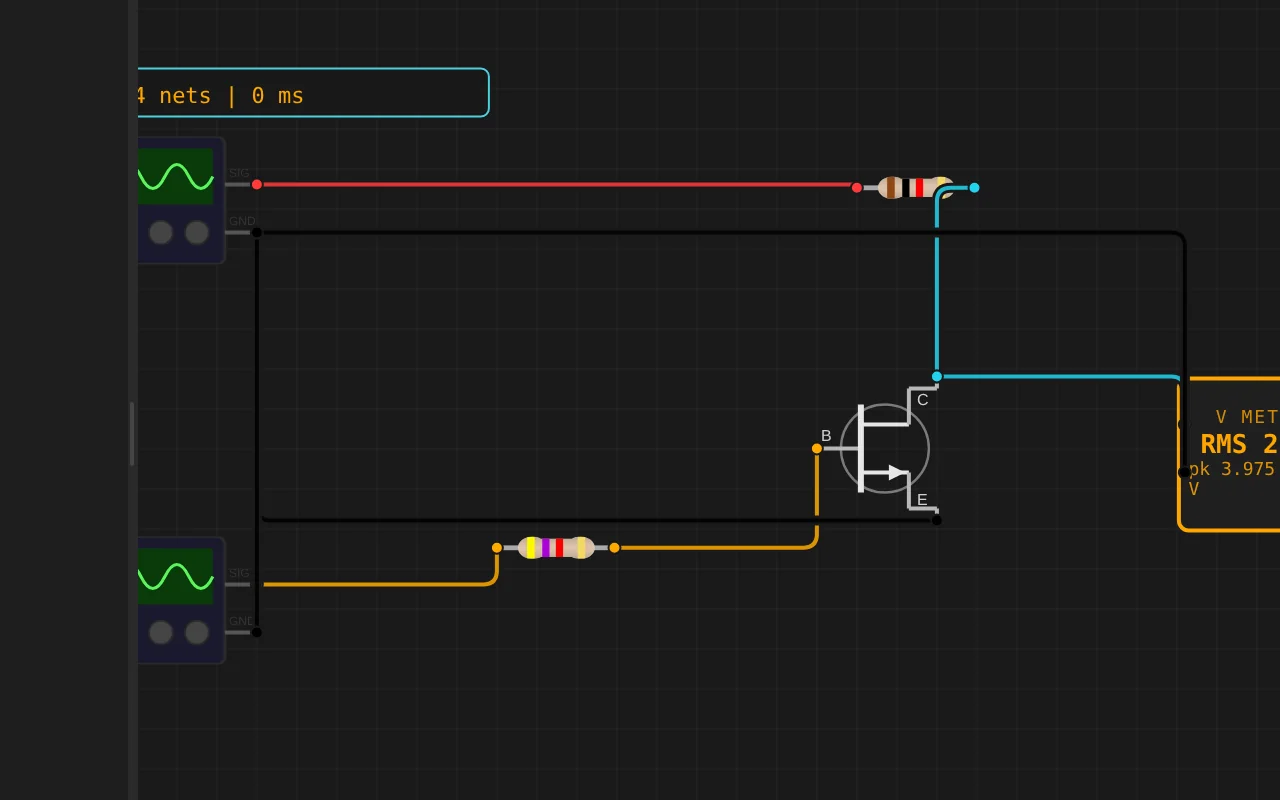
ngspice compiled to WebAssembly runs a full nodal analysis about 60 times a second. GPIO pins drive real nets, ADC inputs read solved node voltages, and probes report RMS, DC and current wherever you drop them.
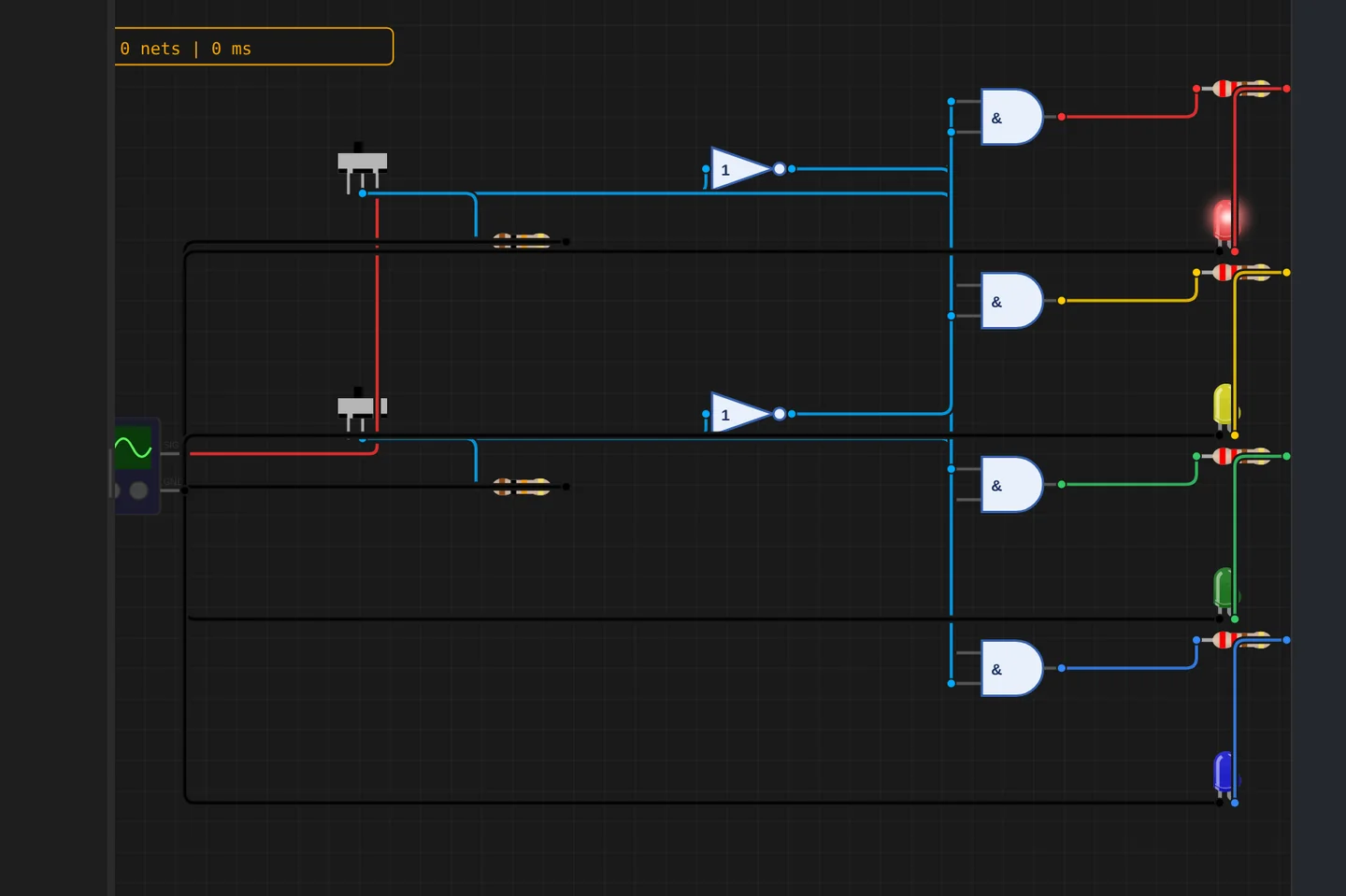
Adders, comparators, decoders, flip-flops and a 1-bit ALU slice: no microcontroller anywhere, just gates, switches and LEDs solved as a real net. The classroom half of electronics, without the breadboard.
The M5Stack Cardputer with its keyboard, Seeed's round display keeping time, Pimoroni's Badger 2350 driving e-paper, and DFRobot's UNIHIKER M10 in the catalogue alongside them. Their makers sent the hardware so the emulation could be checked against the real thing.
35 boards across 6 CPU architectures — AVR8, ARM Cortex-M, ARM Cortex-A, RISC-V, Xtensa, and Linux. Including partner boards from Pimoroni, M5Stack, Seeed Studio and DFRobot. All running locally, no cloud needed.


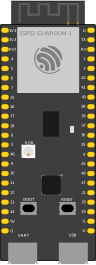


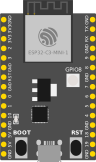


One institution contract gives every student in the class a full Pro account. No per-seat checkout, no card details in a classroom.
Private projects, BOM and schematic exports, GitHub Sync and the offline desktop app, for everyone enrolled.
Billed once to your institution, per semester or per year. Volume pricing on request for large cohorts.
Arduino, ESP32, RP2040, STM32, ATtiny and Raspberry Pi, with SPICE analog solved alongside the firmware. Not a sandboxed mock.
The simulator stays free forever, WiFi with internet included. Paid plans unlock the Linux and STM32 boards, custom WiFi networks, the local network gateway and the offline desktop app. Maker and Pro add the AI agent; No AI leaves it out.
Discover the simulator + light AI help.
The full workbench, zero AI. You write every line.
For makers shipping real circuits with AI help.
Private projects, GitHub Sync and BOM exports.
Questions, bugs and ideas: the Discord and the issue tracker are open, and so is every line of the simulator.
An interactive Arduino Uno circuit simulation you can run free in your browser on Velxio, by xuejinchen12345.
//assuming system is never powered off
//remember to install 'Seeed Studio Grove LCD RGB Backlight library'


const int  lightPin = A1; //binds the light value to port A1
#include <Wire.h> //tells system to use a Library when running
#include "rgb_lcd.h" //tells system to use a Library when running
rgb_lcd screen; //tells system that we have a LCD, name LCD as 'screen'


void setup()


{
  Serial.begin(9600); //direct info to serial port 9600
  screen.begin(16, 2); // states that screen has 16 columns and 2 rows allowing at most 32 characters to be displayed


  screen.setRGB(240,255,240); // RGB color code for the background screen, color code devirived from https://www.rapidtables.com/web/color/RGB_Color.html#color-table


}

void loop()

{
  int  lightLevel = analogRead(lightPin); //allocates anolog port value to variable lightLevel
  Serial.print("Light sensor = ");
  Serial.println(lightLevel);

  if (lightLevel < 500 ) //set light level threshold triggers when covered
  {
    screen.clear(); //refresh screen to 'wake it up'

    screen.setCursor(0, 0);
    screen.print("Opening");


    delay(1000);
    Serial.print("Light sensor = ");
    Serial.println(lightLevel);


    delay(1000);
    Serial.print("Light sensor = ");
    Serial.println(lightLevel);

    screen.clear();
    screen.print("Opened");

    while (lightLevel < 500 ) //keeps door open if covered continously

    {

      lightLevel = analogRead(lightPin); // tells system to detect ligthlevel to prevent loop freezing (note, perviously there was a int  before 'lightlevel' causing variable Shadowing which defines lightlevel again but loop doesn't have lightpin value so circuit crashes)

      Serial.print("Light sensor = "); //allows monitor to display lightlevel during while for observing purposes
      Serial.println(lightLevel);

      delay(100); //check lightlevel every 100ms, note bug:in simulation, releasing mouse button that is controling light too early may cause a crash, either use keyboard to alter value or hold the button until changing lightlevel to be less than 500, shouldn't be a issues in practical

    }

    screen.setCursor(0, 1); //locates the display value to the first character cell on the second row

    screen.setCursor(0, 0);
    screen.print("Closing in");
    Serial.print("Light sensor = ");
    Serial.println(lightLevel);

    screen.setCursor(0, 1);
    screen.print("5 second");
    delay(1000);
    Serial.print("Light sensor = ");
    Serial.println(lightLevel);

    screen.setCursor(0, 1);
    screen.print("4 second");
    delay(1000);
    Serial.print("Light sensor = ");
    Serial.println(lightLevel);

    screen.setCursor(0, 1);
    screen.print("3 second");
    delay(1000);
    Serial.print("Light sensor = ");
    Serial.println(lightLevel);

    screen.setCursor(0, 1);
    screen.print("2 second");
    delay(1000);
    Serial.print("Light sensor = ");
    Serial.println(lightLevel);

    screen.setCur