
DFRobot UNIHIKER M10 Simulator
DFRobot's Linux board with a touchscreen, in your browser
Simulate the DFRobot UNIHIKER M10 online: Python 3 on a Linux board with a built-in 2.8" touchscreen, GPIO and I2C bridged to a live circuit, and a QEMU shell when you need one. Fourteen ready projects.
Three free 15-minute trial sessions · Then Maker and Pro plans · Runs in your browser
DFRobot UNIHIKER M10 at a glance
The UNIHIKER M10 is an education single-board computer: Linux, a built-in touchscreen and a Python-first workflow. In Velxio it runs on the same infrastructure as the Raspberry Pi family rather than as a microcontroller: a real shell, real Python, the screen rendered on the canvas and GPIO bridged to whatever you wire. The gallery's fourteen projects cover the digital piano, the screen widgets and the sensors the board is taught with.
- Processor
- Rockchip RK3308, quad-core Cortex-A35 at 1.2 GHz
- Memory
- 512 MB RAM · 16 GB eMMC · 2.8" 240 x 320 touchscreen
- Emulation
- Python in the browser + QEMU Linux guest (64-bit ARM)
- Languages
- Python 3
- Made by
- DFRobot · Product page
- Plan
- Trial, then Maker or Pro
What you can do with the DFRobot UNIHIKER M10 simulator
The board on the canvas is the real thing as far as your code is concerned: the same pins, the same buses, the same peripherals, wired to the same 100+ sensors, displays and actuators every other Velxio board talks to.
Display rendered live
The glass is the emulated panel controller's frame memory: whatever the sketch draws over SPI shows on the board art at the real resolution, frame by frame.
Touch
A click on the glass is a finger on the touch controller; taps, drags and swipes reach the sketch through the same I2C traffic the real panel produces.
Python 3 with the real libraries
RPi.GPIO, gpiozero, smbus2, spidev and pyserial work as they do on the bench. Scripts start in seconds on the in-browser engine; third-party packages come from a requirements.txt.
GPIO, PWM and ADC
Drive LEDs, relays and servos, read buttons and potentiometers, dim with PWM. Every pin follows the board's real pin map, so what works here works on the hardware.
I2C, SPI and UART
Talk to OLEDs, IMUs, ADCs, RTCs and SD cards over the buses the board really has. Bus traffic runs through emulated peripherals, not through a shortcut.
A Linux shell when you need one
Linux mode boots an Alpine guest under QEMU on our servers with a real terminal and python3. It is not Raspberry Pi OS: no apt, no desktop, no network from inside the guest.
No wiring needed
Every peripheral lives on the board itself, so a project is: place the board, press Run. Wire more when you want to.
Try it before you subscribe
A free account gets three 15-minute trial sessions on this board family; every run inside a session is free. Unlimited runs are part of the Maker and Pro plans and of Velxio Desktop.
DFRobot UNIHIKER M10 examples
Ready-to-run projects for this board from the gallery. Open one, read the sketch, press Run.
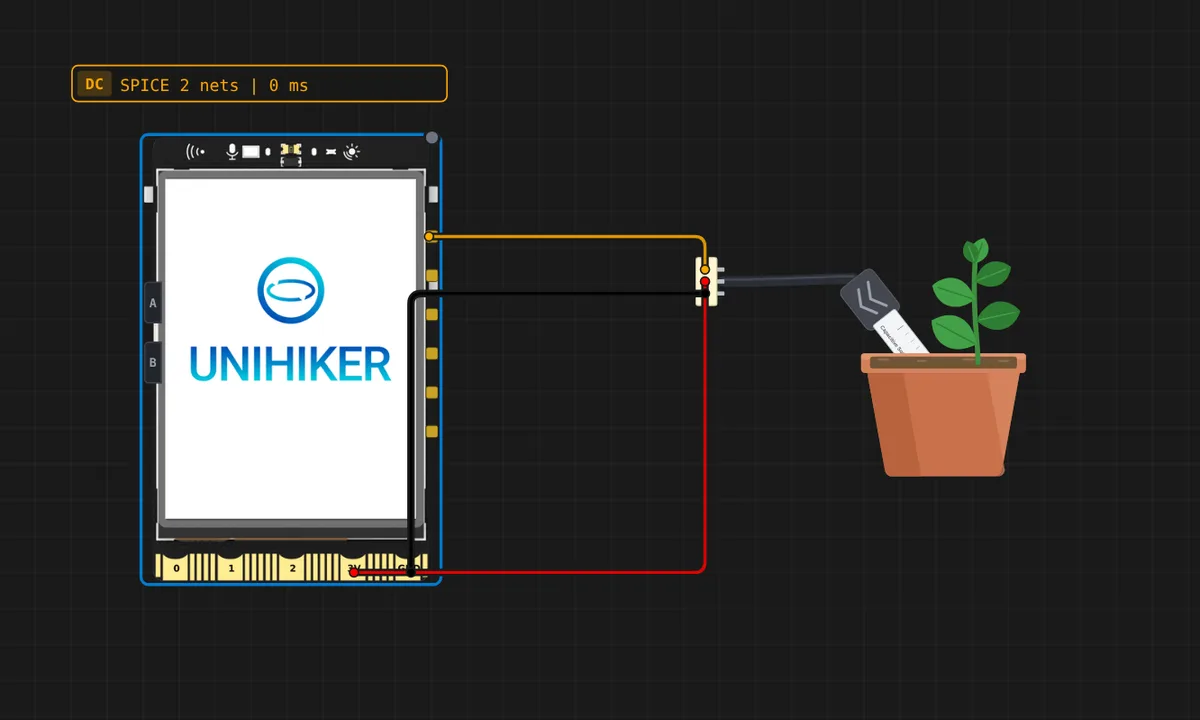 UNIHIKER M10: plant moisture monitoringThe wiki's Plant Moisture Monitoring project (Intermediate Examples > 5), verbatim: the soil probe on P21 read through the 12-bit ADC and shown over a plant picture on the screen. Press Run, then drag the sensor's Moisture slider: dry soil reads high, wet soil low.
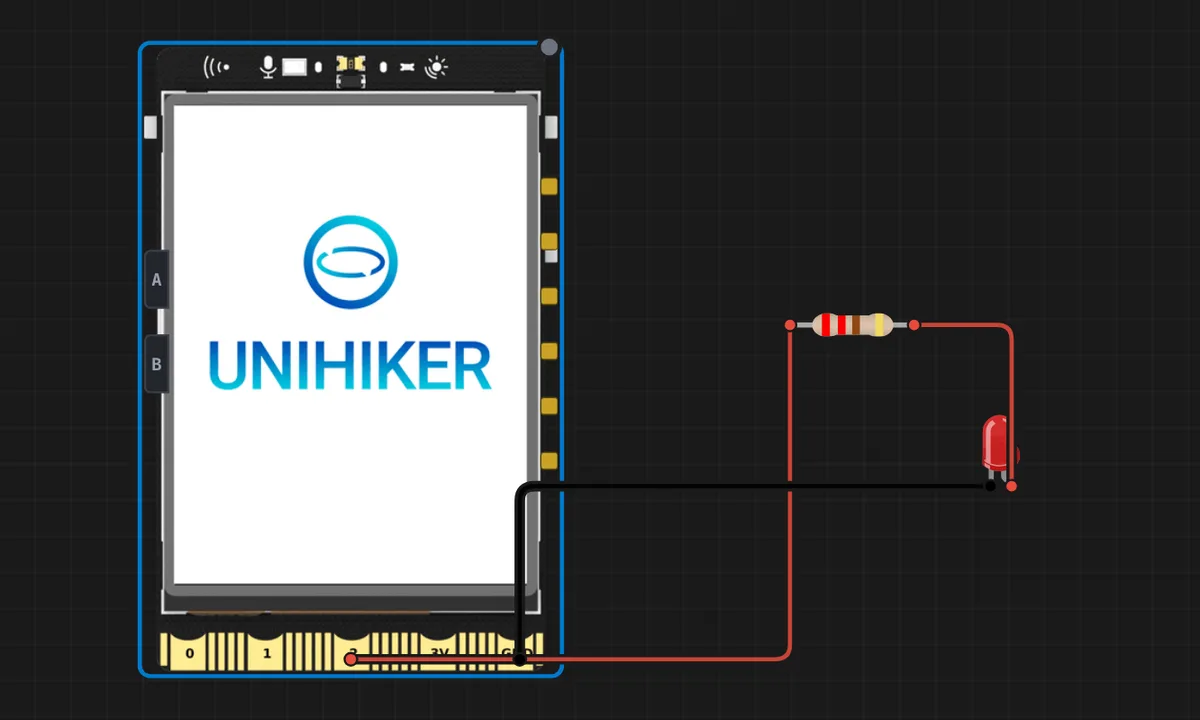 UNIHIKER M10: blink an LED on edge pin 2DFRobot UNIHIKER M10 boots Linux and blinks an LED on edge connector pin 2. Just press Run: the board boots Linux, the script uploads itself and starts.
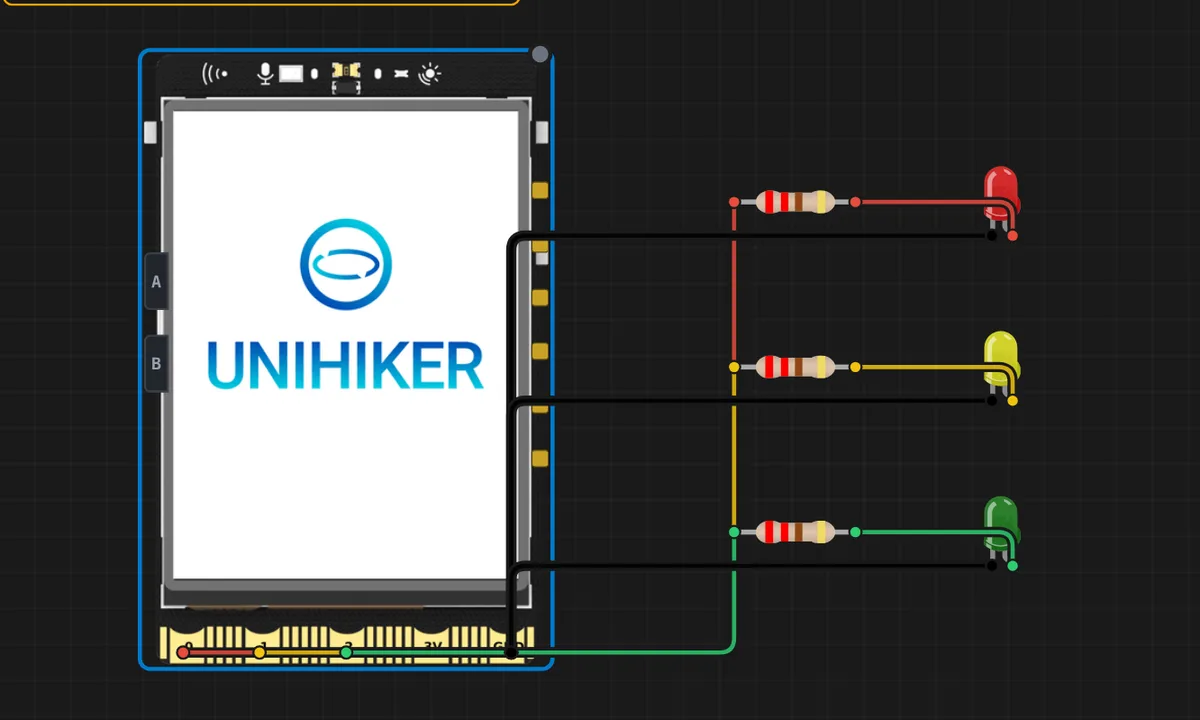 UNIHIKER M10: traffic light on edge pads 0/1/2DFRobot UNIHIKER M10 runs a red/yellow/green traffic-light state machine on its three micro:bit edge pads. Just press Run: the board boots Linux, the script uploads itself and starts.
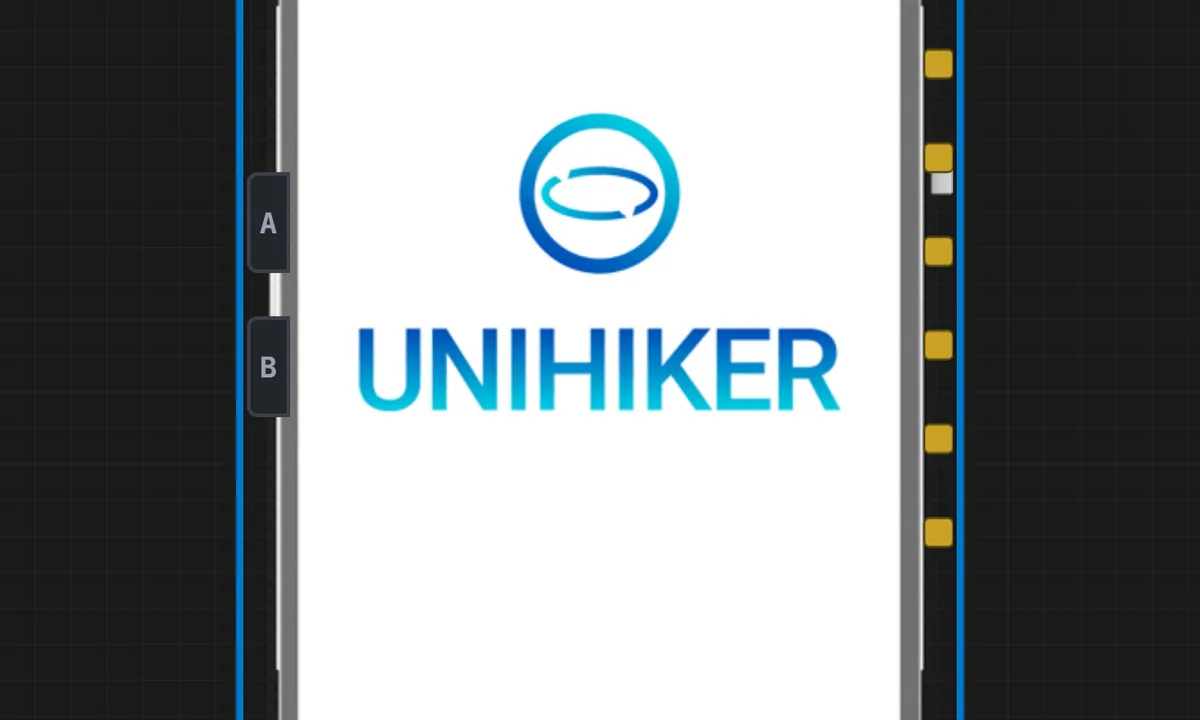 UNIHIKER M10: Hello on the built-in screenDFRobot's official 'Hello, UNIHIKER!' intro: draws colored text and a winking emoji on the built-in 2.8" screen with the unihiker GUI library. Just press Run: the board boots Linux, the script uploads itself and starts.
 UNIHIKER M10: buttons A/B + buzzerPress the on-board A button (left edge of the board) to beep the buzzer and update the screen; B plays the POWER_UP melody. Uses pinpong.extension.unihiker like the official wiki tutorials. Just press Run and then click the A/B buttons on the board.
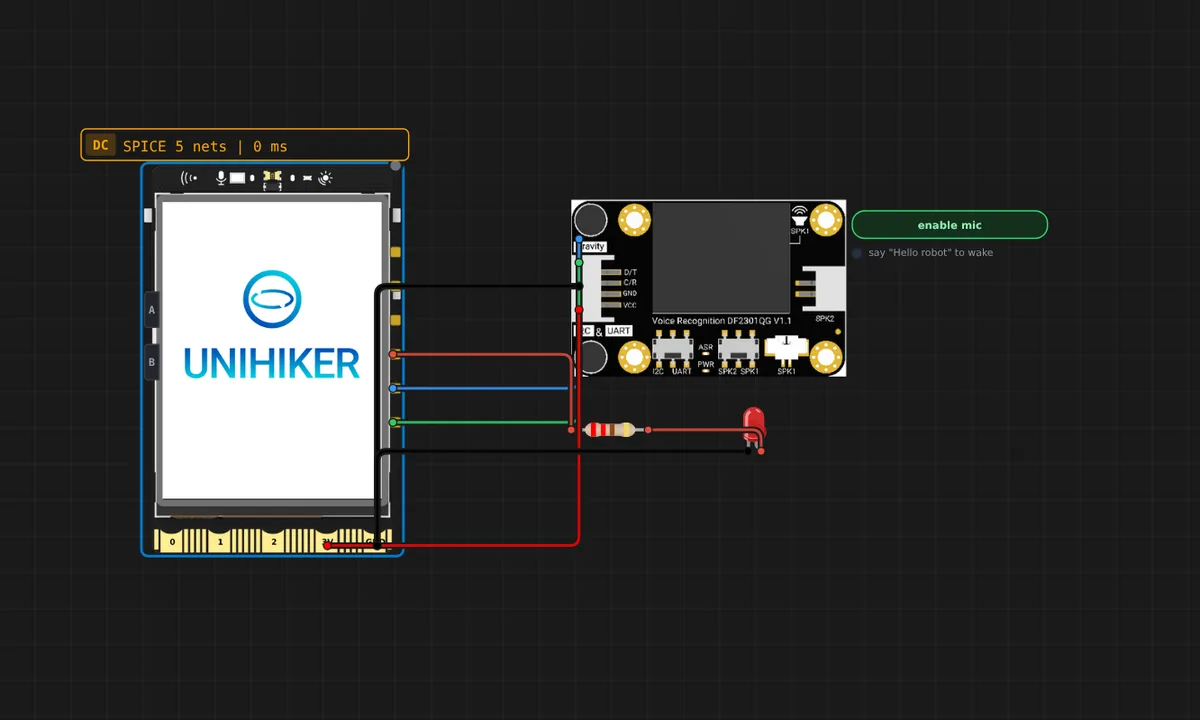 UNIHIKER M10: AI voice-controlled lightDFRobot's advanced wiki project, verbatim: the Gravity DF2301Q offline voice sensor reports command IDs over I2C (103/104) and the script switches the LED on Gravity port P24. Press Run first (the module has no power until then), enable the mic on the sensor, say "Hello robot" to wake it and THEN "Turn on the light". A command spoken while the module sleeps is discarded, like the real sensor. The phrases are English and cannot be changed: the SEN0539-EN's 121 command words are fixed in the module (only its 17 self-learned slots take another language). Use the "simulate command" picker if your browser has no speech recognition.
 UNIHIKER M10: system clock on the screenThe wiki's 'system time' basic example: draws the date and a ticking clock on the built-in 2.8" screen with draw_digit, refreshed once a second. Press Run.
 UNIHIKER M10: starry sky (touch the screen)The wiki's 'starry sky' basic example: a galaxy background with an onclick handler — every tap on the screen adds a star where you pressed. Press Run, then tap the board's screen.
Related simulators
Frequently asked questions
- Does the UNIHIKER's touchscreen work in the simulator?
- Yes. The 240 x 320 screen is rendered on the canvas and a click on it is a touch, so the UI and game projects the board is taught with run as they do on the device.
- Which Python libraries work on the simulated UNIHIKER?
- The libraries the board's lessons use for the screen, the GPIO and the I2C sensors, plus packages declared in a requirements.txt.
- Does the UNIHIKER M10 need a paid plan?
- Building and saving is free. Running boots a Linux guest on our servers and draws on the UNIHIKER trial (three 15-minute sessions on a free account), then the Maker or Pro plan.
- Is the DFRobot UNIHIKER M10 simulator free?
- Partly. You can build and save a DFRobot UNIHIKER M10 circuit with any account, and a free account gets three 15-minute trial sessions to run it; every run inside a session is free. Unlimited runs boot a Linux guest on our servers, so they are part of the Maker and Pro plans, or of Velxio Desktop with a paid licence.
- Which languages can I use on the DFRobot UNIHIKER M10?
- Python 3. The language is switched from the toolbar; the circuit on the canvas stays the same.
Ready to simulate the DFRobot UNIHIKER M10?
Open the editor, place the DFRobot UNIHIKER M10 from the picker, wire what you need and press Run.
Launch the DFRobot UNIHIKER M10 simulator →