
Pimoroni Badger 2350 Simulator
the e-paper badge that boots BadgeOS, in your browser
Simulate the Pimoroni Badger 2350 in your browser for free. It boots the complete BadgeOS factory firmware: navigate the launcher, open the clock, badge and gallery apps, and watch the e-paper refresh like e-paper.
Free plan · No install, no account · Runs in your browser
Pimoroni Badger 2350 at a glance
The Badger 2350 is the deepest emulation in the partner catalog: it boots the complete BadgeOS factory firmware, and you navigate the launcher with A, B, C and the UP/DOWN keys exactly as on the badge in your hand. The 2.7" e-paper is emulated as e-paper, not as an LCD pretending: a full refresh flashes and takes its time, a partial refresh is visibly different. Only four pins reach the outside world, so its projects are about what is already on the board.
- Processor
- RP2350, dual-core at 150 MHz
- Memory
- 520 KB SRAM · 2.7" 296 x 128 e-paper
- Emulation
- rp2350js (in-browser)
- Languages
- MicroPython (BadgeOS) · Arduino C++
- Made by
- Pimoroni · Product page
- Plan
- Free
What you can do with the Pimoroni Badger 2350 simulator
The board on the canvas is the real thing as far as your code is concerned: the same pins, the same buses, the same peripherals, wired to the same 100+ sensors, displays and actuators every other Velxio board talks to.
E-paper that behaves like e-paper
A full refresh flashes and takes its time; a partial refresh looks different. The panel is emulated as e-paper, not as an LCD pretending, which is why badge projects are written the way they are.
Boots the factory firmware
The board runs the complete firmware it ships with: navigate the launcher, open the built-in apps, and see the device exactly as its owner does.
Clickable buttons
The on-board buttons are clickable on the canvas and read on their real GPIOs, active-low as on the hardware.
MicroPython
Switch the board to MicroPython from the toolbar and run main.py against the same circuit. Drivers are plain .py files in the workspace, copied onto the board's filesystem before your script starts.
Arduino C++ sketches
Write a sketch in the Monaco editor with library completion, compile it against the board's own Arduino core and run the real firmware binary. The Serial Monitor is the USB port.
No wiring needed
Every peripheral lives on the board itself, so a project is: place the board, press Run. Wire more when you want to.
Pimoroni Badger 2350 examples
Ready-to-run projects for this board from the gallery. Open one, read the sketch, press Run.
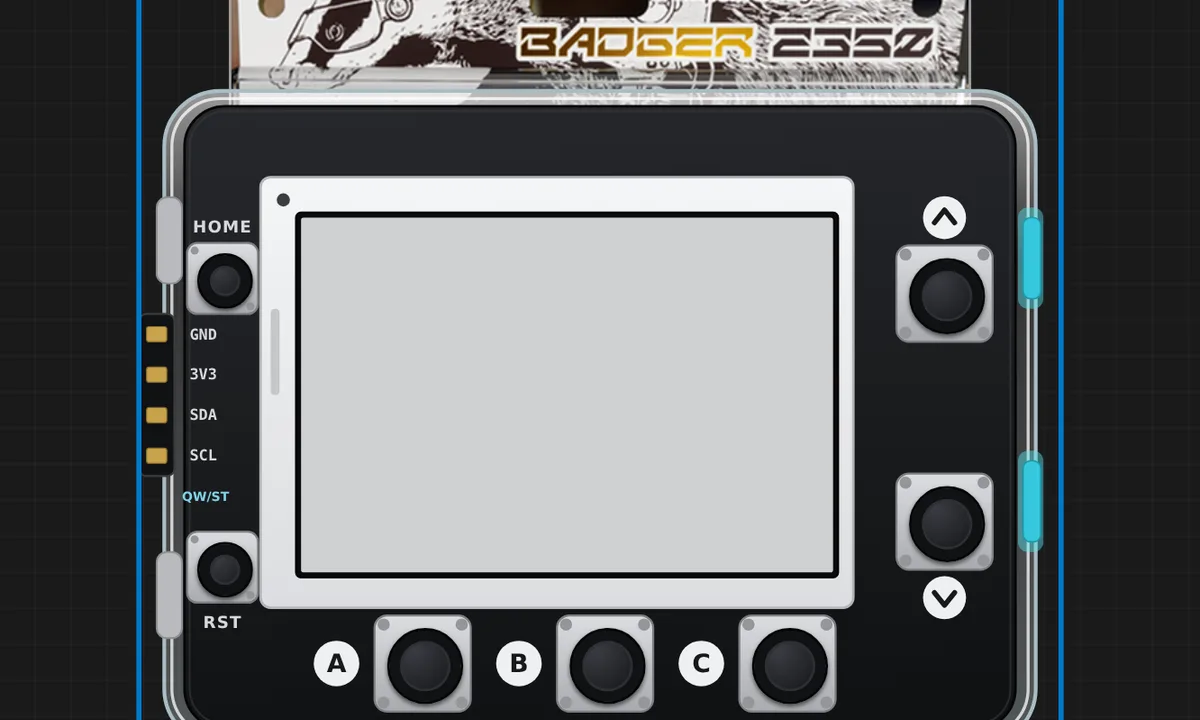 Pimoroni Badger 2350 — e-paper badgeThe Badger 2350 comes alive: the 2.7" e-paper (SSD1680, 264x176) draws a name badge, A/B/C switch between badge, clock (real PCF85063A RTC at 0x51) and info screens, and UP/DOWN turn the rear case lights on and off. Everything runs on the in-browser RP2350 RISC-V emulator - click the buttons on the board.
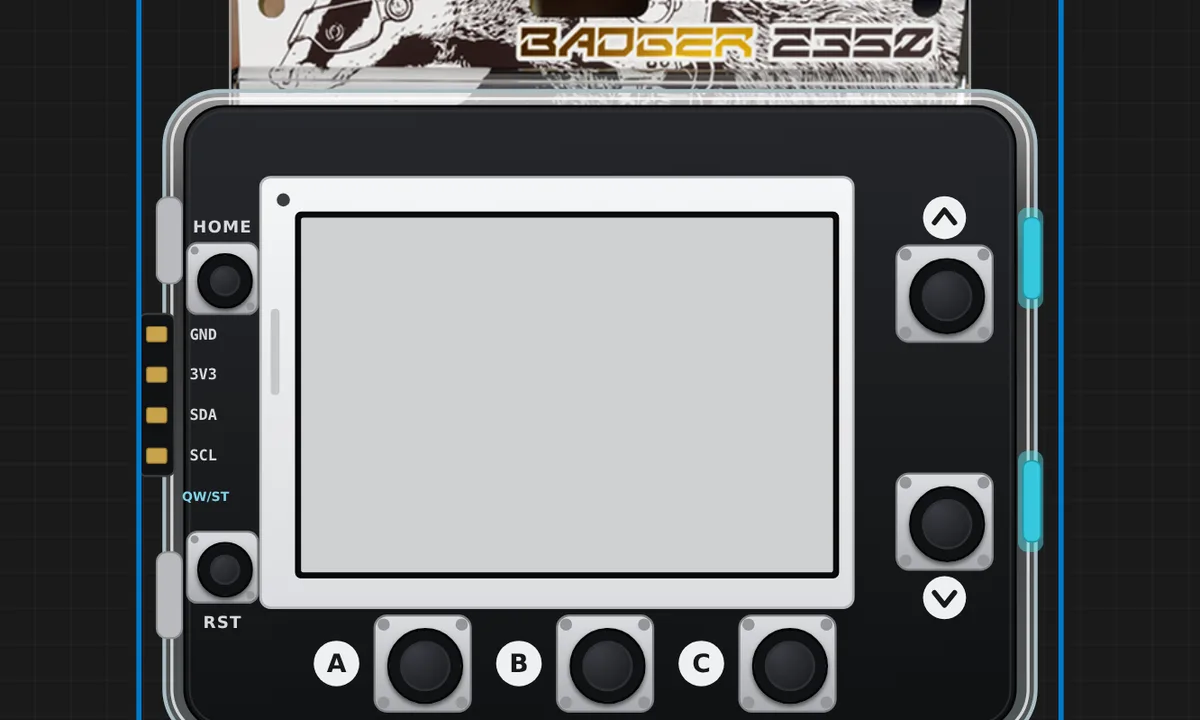 Pimoroni Badger 2350 — I2C scanner on e-paperThe e-paper draws a live I2C bus scan: every device on the bus (a 24C01 EEPROM at 0x50 on the Qw/ST connector and the badge's own PCF85063A RTC at 0x51) listed with its address, the EEPROM write/read self-test result and the current RTC time. Press A on the board to re-scan. Runs on the in-browser RP2350 RISC-V emulator.
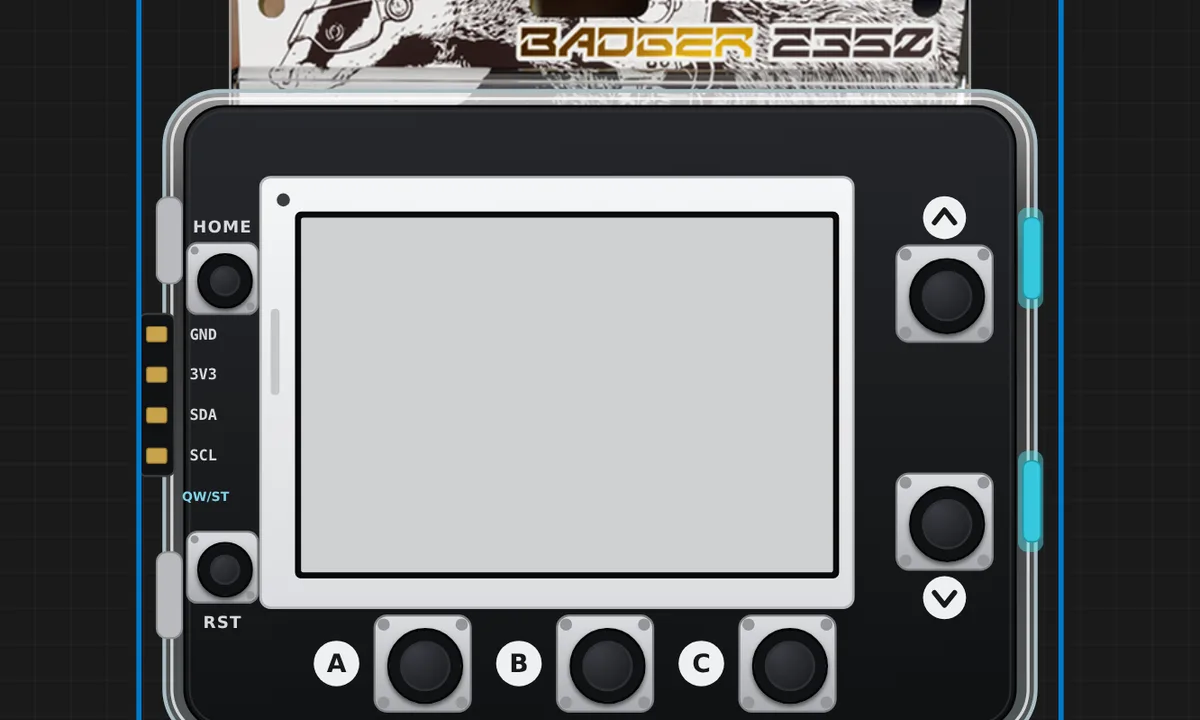 Pimoroni Badger 2350 — to-do listA checklist on the e-paper like the official BadgeOS list app: move the cursor with UP/DOWN, tick the highlighted task with A (B clears all, C ticks all). Completed tasks get a filled checkbox and a strike-through, and the rear case lights fill up with your progress. Click the buttons on the board.
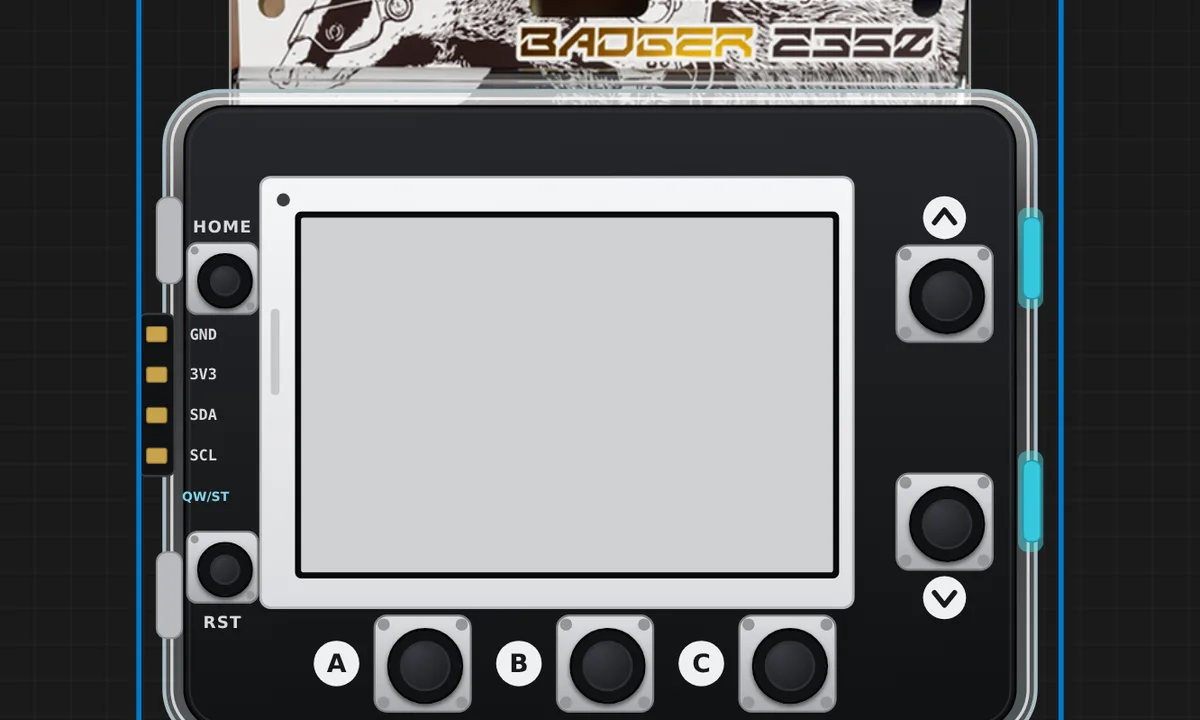 Pimoroni Badger 2350 — hydration counter (partial refresh)Water-intake counter inspired by the official BadgeOS hydrate app: A adds a glass, B removes one, C resets, and the case lights fill with your progress toward 8 glasses. Only the counter band is re-uploaded to the SSD1680 (partial RAM-window writes with per-row counter re-seek), so the header stays put between refreshes.
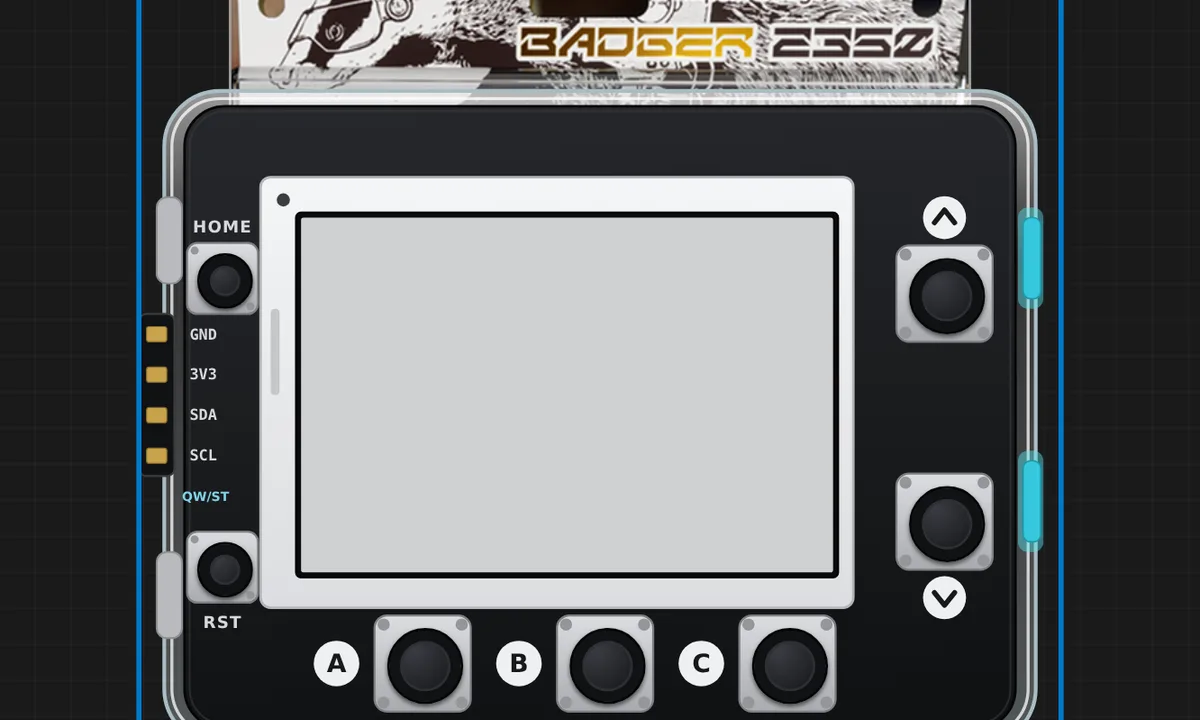 Pimoroni Badger 2350 — RTC alarm clockA big e-paper clock driven by the real PCF85063A registers: press A to arm the RTC alarm 10 seconds ahead (BCD alarm registers + AIE). When the chip fires it pulls the INT line (GPIO13) low - the screen flips to ALARM and all four case lights turn on. C clears the alarm flag and returns to the clock.
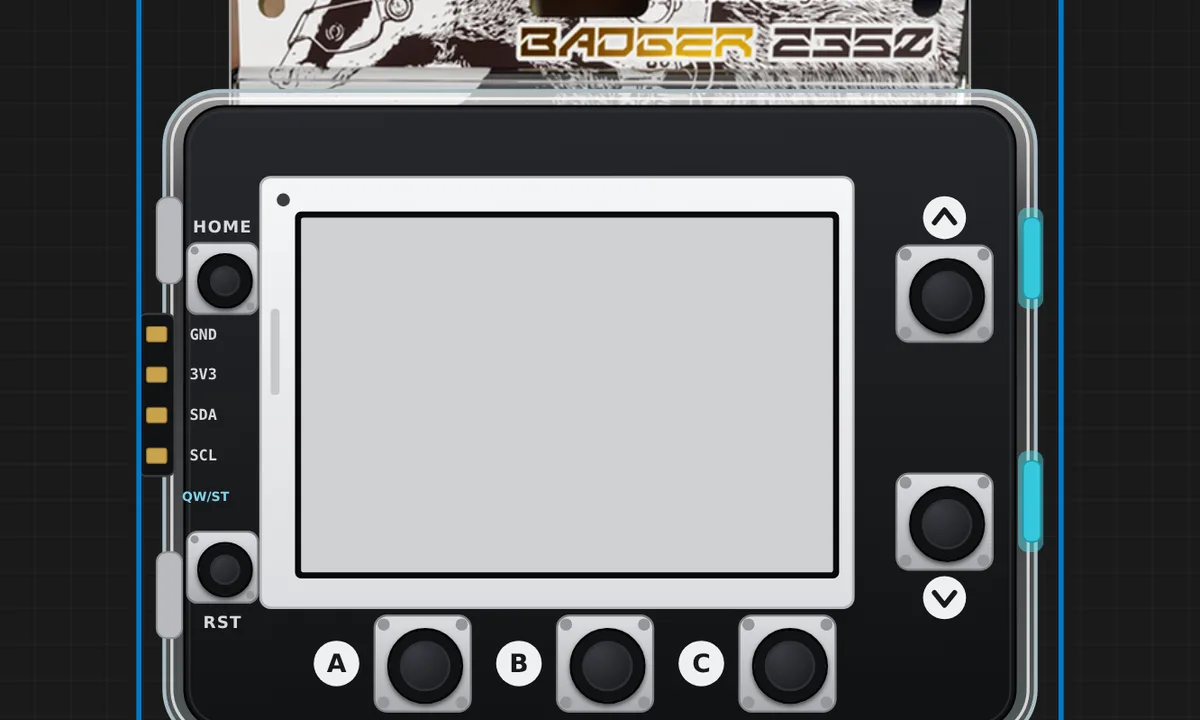 Pimoroni Badger 2350 — widgets dashboard (weather, calendar, clock)A home-screen of widgets on the e-paper, all from the badge's own hardware: the date and clock from the PCF85063A RTC, a month calendar with your agenda and a countdown to the next event, live weather and the next hours' forecast fetched over WiFi (the RM2 joins Velxio's virtual access point and asks Open-Meteo by plain HTTP), and day and year progress as dot grids next to the battery level and the RP2350's own temperature sensor. A home, B calendar, C weather, UP/DOWN to page through. Edit the city and the agenda in sketch.ino; the pages live in ui.h with real proportional fonts in fonts.h.
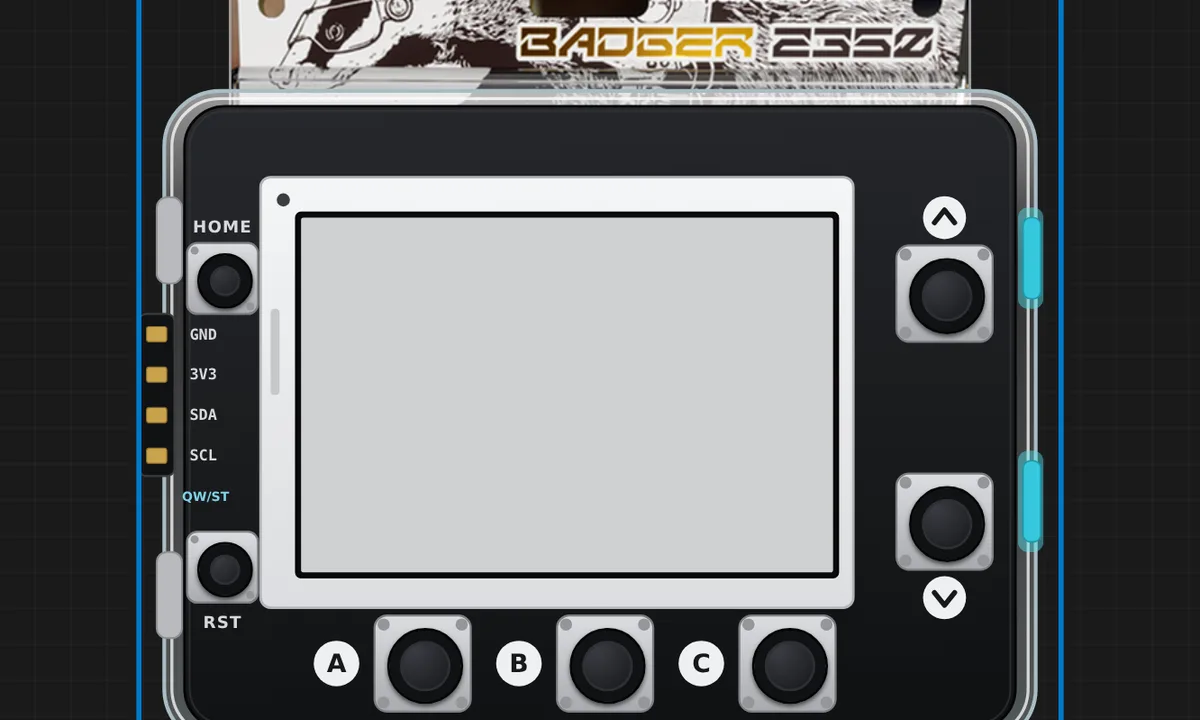 Pimoroni Badger 2350 — MicroPython REPLThe Badger 2350 boots vanilla RP2350 ARM MicroPython (Cortex-M33) entirely in the browser, runs your main.py from its LittleFS and drops to a live REPL. This example prints a greeting and then a heartbeat with the front-button states (A/B/C/UP/DOWN) once a second - click the buttons on the board and open the Serial Monitor to watch. Switch the language selector to MicroPython to edit the .py.
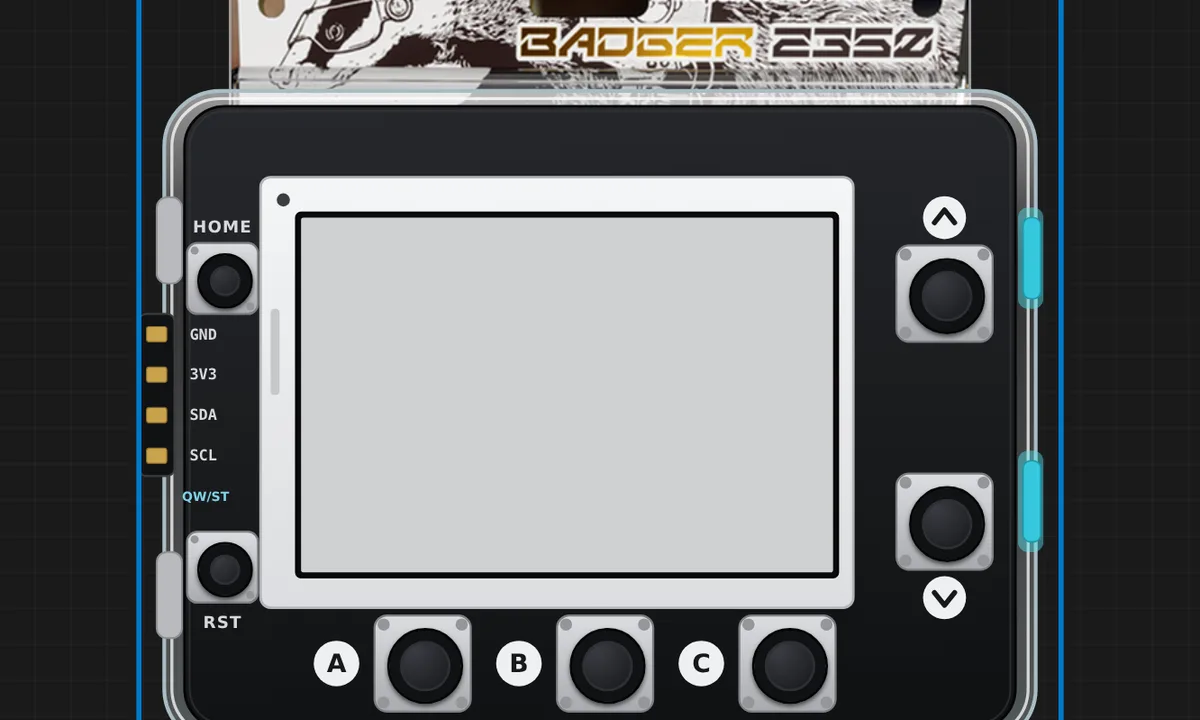 Pimoroni Badger 2350 — BadgeOS factory firmwareBoot the badge's REAL factory firmware: press Run and BadgeOS v2.0.2 (ARM MicroPython + custom C modules) boots in the browser — the factory menu renders on the e-paper and is navigable with A/B/C/UP/DOWN. The full MicroPython source tree from github.com/pimoroni/badger2350 (main.py, and every app under firmware/apps - badge, clock, gallery, hydrate, list, the_compendium raycaster game, weather) is loaded as browsable folders in the file explorer for reference (binary assets omitted).
Related simulators
Frequently asked questions
- Does the simulated Badger really run BadgeOS?
- Yes. The RP2350 engine boots Pimoroni's factory firmware from its flash image; the launcher, the clock, the badge and the gallery apps are the real ones.
- Can I write my own badge app?
- Yes. Edit the MicroPython files in the workspace, or write an Arduino C++ sketch; the e-paper, the buttons and the RTC behave as on the badge.
- Why is the screen slow to update?
- Because e-paper is. The panel is emulated with its real refresh behaviour, which is why badge firmware batches drawing and uses partial refreshes.
- Is the Pimoroni Badger 2350 simulator free?
- Yes. The Pimoroni Badger 2350 runs on the free plan: open the editor, place the board and press Run. No install and no account are needed, and Velxio's editor and simulator core are open source under the GNU AGPLv3.
- Which languages can I use on the Pimoroni Badger 2350?
- MicroPython (BadgeOS), Arduino C++. The language is switched from the toolbar; the circuit on the canvas stays the same.
Ready to simulate the Pimoroni Badger 2350?
Open the editor, place the Pimoroni Badger 2350 from the picker, wire what you need and press Run.
Launch the Pimoroni Badger 2350 simulator →